Database Migrations when Upgrading Phase
Certain versions of Phase may require migrations to the database schema. Understanding how migrations work is crucial for maintaining a healthy Phase instance, especially when upgrading to a new version.
Migration Requirements
When a new Phase version is released that requires database migrations, it will be clearly mentioned in the release notes with an "Important" notice:
Important: This release includes database migrations that must be run when upgrading to this version.
Always check the release notes before upgrading to ensure you're aware of any migration requirements.
Migration Configuration
By default, the backend container will automatically run migrations upon starting if the EXTERNAL_MIGRATION environment variable is not set or is set to false. For more information on this setting, see the environment variables documentation.
Automatic Migrations
If you're using the official Phase deployment methods such as:
Migrations will be handled externally by a dedicated job running a standalone version of the backend container. The backend and worker services will depend on this migration job completing successfully before they start. So no additional configuration or action is required on your part.
Running Migrations Manually
If you've created your own deployment of Phase in a high availability system (i.e., running multiple replicas of the backend/worker services), you'll need to run migrations manually. To do this, create a job that runs the following command in the backend container image, which runs before the backend and worker services start:
python manage.py migrate
Ensure that EXTERNAL_MIGRATION is set to true in your backend service's environment variables to prevent redundant migrations from being run.
One-Way Database Changes
It's important to understand that Phase's database migrations are one-way and permanent. Once a migration has been applied to your database, reverting to an older version of Phase (prior to that migration) is not recommended and will likely cause problems. This is because migrations permanently change the database schema.
Database Backups
Before running any migration, we strongly recommend taking a snapshot or backup of your database instance. This ensures that if you need to revert to an older version of Phase for any reason, you can restore from the backup rather than trying to roll back migrations directly. Having a database system with point in time recovery also can help reduce the burden of manual backups and ensure reliable migrations.
Audit Log Management
Phase keeps detailed audit logs of secret access, particularly read events. These logs can accumulate quickly, especially in environments with frequent secret polling. To manage database size and performance, you can periodically clean up old audit logs. In future releases we will provide a simpler way to manage this directly from the Phase Console.
Purging Old Audit Logs
You can use the purge_app_logs utility command to safely remove old audit logs. Execute this command from within the backend container:
Secret creation logs will not be deleted as they are required for the functioning of other features like secret history and point in time recovery.
python manage.py purge_app_logs -h
usage: manage.py purge_app_logs [-h] [--retain RETAIN] [--app-id APP_ID] [--version] [-v {0,1,2,3}] [--settings SETTINGS] [--pythonpath PYTHONPATH] [--traceback] [--no-color] [--force-color] [--skip-checks] org_name

Purge logs older than a specified number of days for a specific organisation or app.

positional arguments:
  org_name              Name of the organisation

options:
  -h, --help            show this help message and exit
  --retain RETAIN       Number of days of logs to retain (default: 30, 0 to delete all)
  --app-id APP_ID       ID of a specific app to delete logs for (optional)
  --version             Show program's version number and exit.
  -v {0,1,2,3}, --verbosity {0,1,2,3}
                        Verbosity level; 0=minimal output, 1=normal output, 2=verbose output, 3=very verbose output
  --settings SETTINGS   The Python path to a settings module, e.g. "myproject.settings.main". If this isn't provided, the DJANGO_SETTINGS_MODULE environment variable will be used.
  --pythonpath PYTHONPATH
                        A directory to add to the Python path, e.g. "/home/djangoprojects/myproject".
  --traceback           Raise on CommandError exceptions.
  --no-color            Don't colorize the command output.
  --force-color         Force colorization of the command output.
  --skip-checks         Skip system checks.
# Basic usage - purges logs older than 30 days
python manage.py purge_app_logs <organisation_name>

# Purge logs older than 60 days
python manage.py purge_app_logs <organisation_name> --retain 60

# Purge logs for a specific app only
python manage.py purge_app_logs <organisation_name> --app-id <app-id>

# Combine retention period and app-specific purging
python manage.py purge_app_logs <organisation_name> --retain 60 --app-id <app-id>
This utility is available on the backend and worker service containers. You may use the docker command to shell into the container and run the command.
Examples:
# Via Docker
docker exec -it <container_id> python manage.py purge_app_logs SpaceX --retain 90

# Via Docker compose
docker compose exec worker python manage.py purge_app_logs SpaceX --retain 90

# Via Kubernetes
kubectl exec -it <pod_name> python manage.py purge_app_logs SpaceX --retain 90
Performance considerations
The performance impact of log purging depends on your database instance specifications. For Phase instances with a large number of audit-log events (100+ million), we recommend running the purge_app_logs command for the first time during off-peak hours to avoid performance degradation. In our testing, it took about 2.5 minutes to delete 1 million read events on a modest AWS RDS db.t3.micro instance.
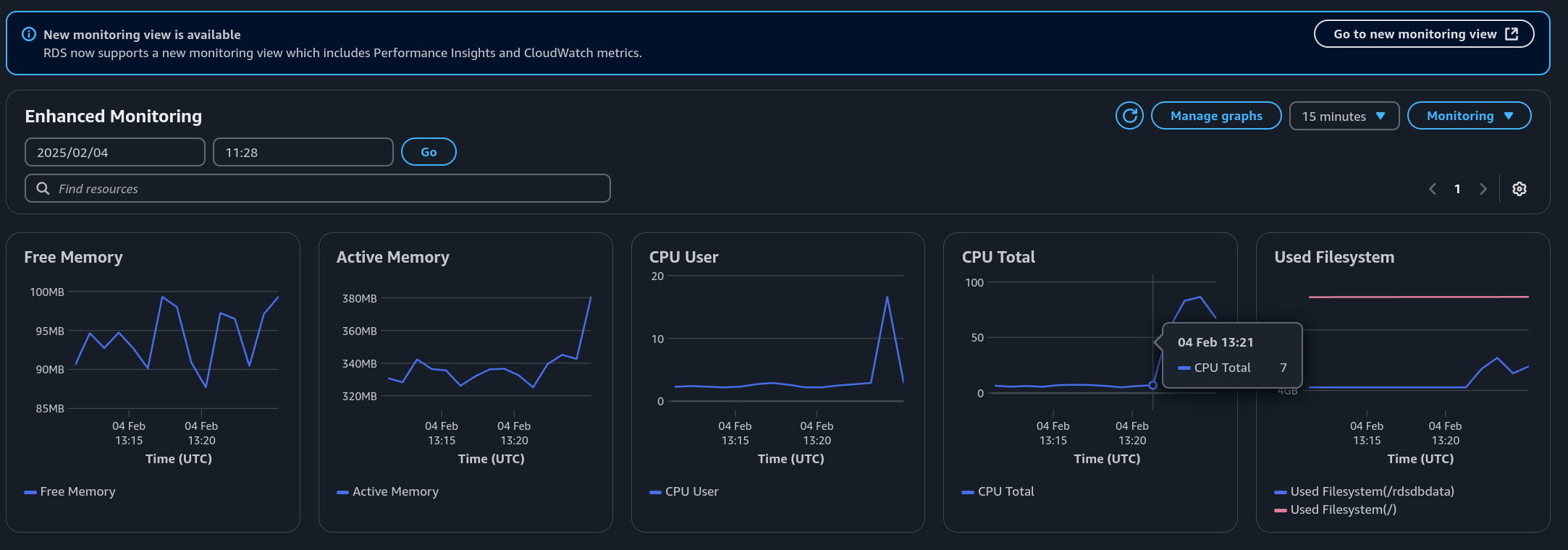
Reclaiming Disk Space
To reclaim disk space, you will need to run VACUUM on the database after purging the logs. See PostgreSQL documentation for more information.
After purging logs, follow these steps to reclaim disk space in your PostgreSQL database:
- Connect to your PostgreSQL database:
export PGPASSWORD="$DATABASE_PASSWORD"
psql -h your-database-host -p 5432 -U phase_api -d phase_db
- Verify your current user and database:
SELECT NOW(), current_user, current_database();
Make sure the current_user is phase_api and the current_database is phase_db.
- Check the current size of the audit log (
api_secretevent) table:
SELECT
  pg_size_pretty(pg_relation_size('api_secretevent')) AS table_data,
  pg_size_pretty(pg_indexes_size('api_secretevent')) AS indexes,
  pg_size_pretty(pg_total_relation_size('api_secretevent')) AS total;
Example output:
 table_data | indexes | total
------------+---------+-------
 8334 MB    | 2393 MB | 10 GB
As you can see, the table is 10GB and has 8.3GB of data.
- Check for dead tuples (rows) in the table that can be removed:
SELECT relname,
       n_live_tup,
       n_dead_tup,
       last_vacuum,
       last_autovacuum,
       last_analyze,
       last_autoanalyze
FROM pg_stat_user_tables
WHERE relname = 'api_secretevent';
Example output:
     relname     | n_live_tup | n_dead_tup | last_vacuum |        last_autovacuum        | last_analyze |       last_autoanalyze
-----------------+------------+------------+-------------+-------------------------------+--------------+-------------------------------
 api_secretevent |    1433160 |      16660 |             | 2025-05-18 04:02:32.280993+00 |              | 2025-05-19 09:05:24.915207+00

# 1,433,160 rows are live and 16,660 rows ☝️ are dead, ready to be removed
- Run the standard vacuum command:
VACUUM VERBOSE api_secretevent;
This will remove the dead tuples and reclaim the space for future use within postgres. Depending on your table size, this operation can take anywhere from a few seconds to several minutes, but is safe to run in parallel with regular operation.
- Verify the space has been reclaimed:
SELECT relname,
       n_live_tup,
       n_dead_tup,
       last_vacuum,
       last_autovacuum,
       last_analyze,
       last_autoanalyze
FROM pg_stat_user_tables
WHERE relname = 'api_secretevent';
After vacuuming, the n_dead_tup count should be significantly reduced or zero.
     relname     | n_live_tup | n_dead_tup | last_vacuum |        last_autovacuum        | last_analyze |       last_autoanalyze
-----------------+------------+------------+-------------+-------------------------------+--------------+-------------------------------
 api_secretevent |    1433160 |      0     |             | 2025-05-18 04:02:32.280993+00 |              | 2025-05-19 09:05:24.915207+00
# 1,433,160 rows are live and 0 ☝️ rows are dead
- Optional: For more aggressive space reclamation, you can use
VACUUM FULL:
VACUUM FULL will place an ACCESS EXCLUSIVE lock on your table, preventing reads and writes to the api_secretevent table. Only run this command during maintenance windows as you will not be able to access, create or update secrets when this is running.
This method also requires extra disk space, since it writes a new copy of the table and doesn't release the old copy until the operation is complete.
VACUUM FULL ANALYZE api_secretevent;
This command physically removes dead rows and returns disk space to the operating system. Checking the table size afterwards should show a significant reduction:
SELECT
  pg_size_pretty(pg_relation_size('api_secretevent')) AS table_data,
  pg_size_pretty(pg_indexes_size('api_secretevent')) AS indexes,
  pg_size_pretty(pg_total_relation_size('api_secretevent')) AS total;
Example output after VACUUM FULL:
 table_data | indexes | total
------------+---------+--------
 386 MB     | 103 MB  | 490 MB
As shown in this example, table size was reduced from 10GB to 490MB.
Resetting Global Network Access Policies
When using Network Access Policies, there's a possibility of accidentally locking yourself out of your Phase instance by enabling a global policy that doesn't include your current IP address. If this happens, you can use the following emergency procedure to reset all global network policies.
Emergency Global Policy Reset
Follow these steps to reset all global network access policies across all organizations on your instance:
- Gain shell access to the backend container:
# Via Docker
docker exec -it <container_id> /bin/sh

# Via Docker compose
docker compose exec backend /bin/sh

# Via Kubernetes
kubectl exec -it <pod_name> -- /bin/sh
- Start a Python shell using Django's management command:
python manage.py shell
- Run the following Python code to reset all global policies:
from api.models import NetworkAccessPolicy
for policy in NetworkAccessPolicy.objects.all():
    policy.is_global = False
    policy.save()
You may have to copy the above code and execute it one line at a time. Given this is Python code, please make sure it's indented correctly when pasting it into the shell.
-
If the command completes without errors, all global network policies have been successfully reset.
-
Exit the Python shell (Ctrl+D or
exit()) and container shell. -
You should now be able to log in to your Phase Console and access your organization.
This procedure should only be used in emergency situations when you've been locked out of your Phase instance. After regaining access, review and reconfigure your network access policies appropriately to ensure proper security.
SSO Enforcement Recovery
When using SSO with enforcement enabled, there's a possibility that every administrator of an organisation becomes unable to sign in — for example, if the SSO provider is misconfigured, the identity provider is temporarily unavailable, or no admin has a working account on the configured provider. If this happens, you can use the disable_org_sso management command to restore access without touching the database directly.
Inspecting SSO State
Before making changes, you can inspect the current SSO state of an organisation:
python manage.py disable_org_sso --org <organisation-name> --show
This prints require_sso, each configured provider, whether it is enabled, and its ID.
Emergency SSO Disable
Follow these steps to disable SSO enforcement and regain access:
- Gain shell access to the backend container:
# Via Docker
docker exec -it <container_id> /bin/sh

# Via Docker compose
docker compose exec backend /bin/sh

# Via Kubernetes
kubectl exec -it <pod_name> -- /bin/sh
- Run one of the following management commands:
# Turn enforcement off (leaves providers configured so members with working SSO accounts can still sign in)
python manage.py disable_org_sso --org <organisation-name> --disable-enforcement

# Turn enforcement off AND disable all providers (falls the organisation fully back to password login)
python manage.py disable_org_sso --org <organisation-name> --disable-providers
-
The command prints a confirmation when the change is applied.
-
Administrators can now sign in to the organisation via password or any remaining enabled SSO provider.
This procedure should only be used in emergency situations when an organisation has been locked out of its Phase Console. After regaining access, review the SSO provider configuration in Access → Single Sign-On and re-enable enforcement once a working provider is in place.
Client IP Detection Behind Reverse Proxies
Phase uses the X-Real-IP header to identify the actual client IP address for audit logging and network access policies. By default, Nginx detects the real client IP and forwards it to the Phase backend via this header.
Cloudflare and ALB Configuration
If you're running Phase behind a reverse proxy like Cloudflare or Amazon ALB before Nginx (e.g., Cloudflare → ALB → Nginx → Phase services), you must configure Nginx to trust and extract the client IP from the upstream service's headers.
For security reasons, ensure your Nginx instance only accepts IP information from trusted sources (Cloudflare or ALB IP ranges). Use the ngx_http_realip_module to configure this properly. This is to make sure an attacker cannot spoof the client IP address to bypass any Network Access Policies or audit logs.
Nginx Configuration Example
If using Cloudflare, configure Nginx to map Cloudflare's CF-Connecting-IP header:
# --- Cloudflare IP header forwarding ---
map $http_cf_connecting_ip $client_real_ip {
    default $remote_addr;
    "~." $http_cf_connecting_ip;
}

http {
  server {
      listen 80;
      listen 443 ssl;
      http2 on;
      server_tokens off;

      # Route API traffic to backend
      location /service/ {
          rewrite ^/service/(.*) /$1 break;
          proxy_set_header X-Real-IP $client_real_ip;
          proxy_set_header X-Forwarded-For $proxy_add_x_forwarded_for;
          proxy_set_header Host $http_host;
          proxy_pass http://backend:8000;
      }

      # Route traffic to frontend
      location / {
          proxy_set_header X-Real-IP $client_real_ip;
          proxy_set_header X-Forwarded-For $proxy_add_x_forwarded_for;
          proxy_set_header Host $http_host;
          proxy_pass http://frontend:3000;
      }
  }
}
For Amazon ALB, replace $http_cf_connecting_ip with the ALB's IP header accordingly.
See the Cloudflare documentation for more details.
If you're using Traefik or other reverse proxies, adjust the header mapping configuration to match your proxy's client IP header format. You may provide the above nginx config to your favorite AI assistant to help you configure your reverse proxy.