Roles
Roles in Phase define the level of access and permissions granted to users within an organization. They determine what actions a user can perform and what resources they can access. Phase offers both managed roles with predefined permissions and the ability to create custom roles for more specific access control needs.
Assigning Roles to Users
To assign a role to a user or change a user's role:
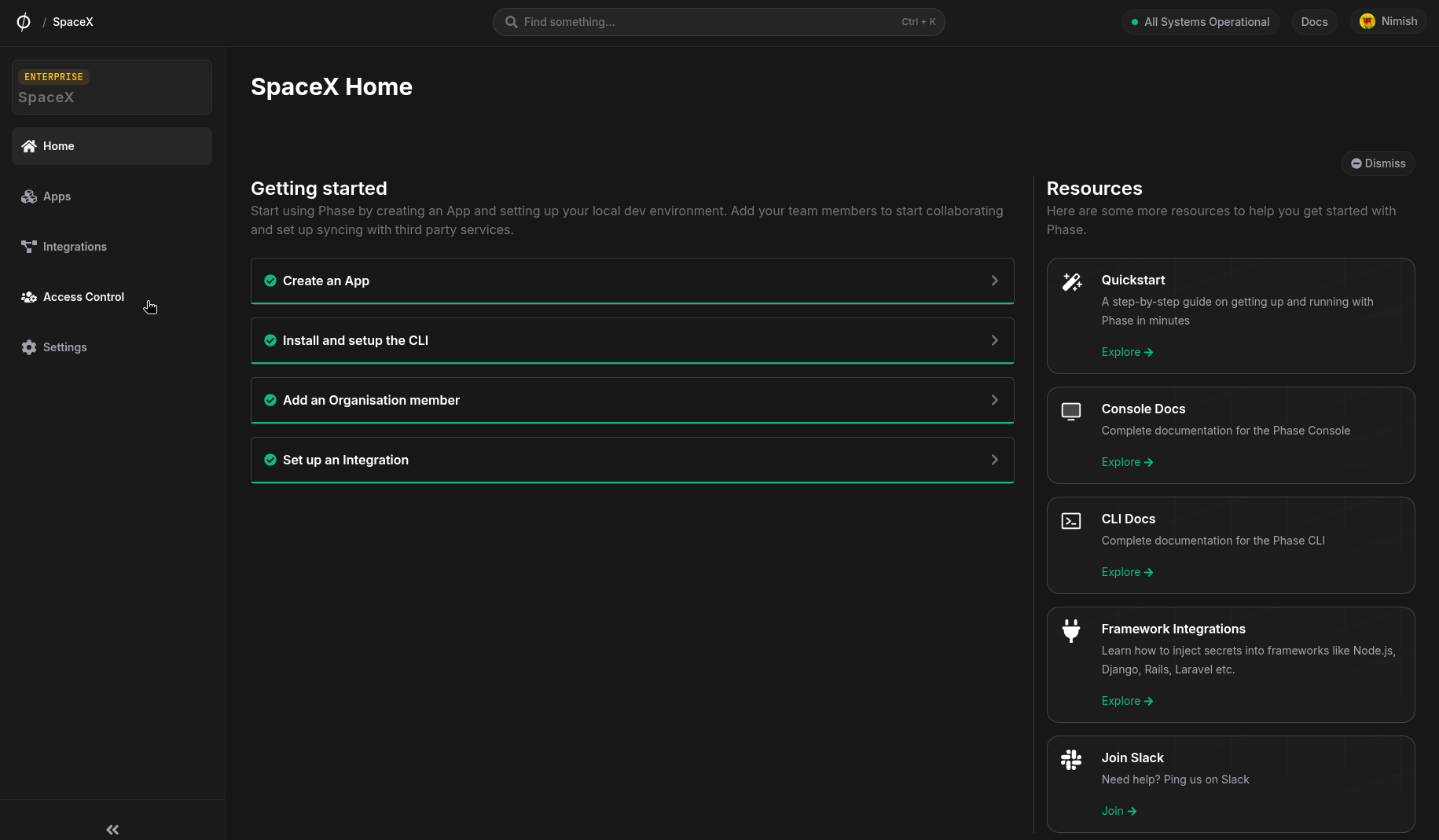
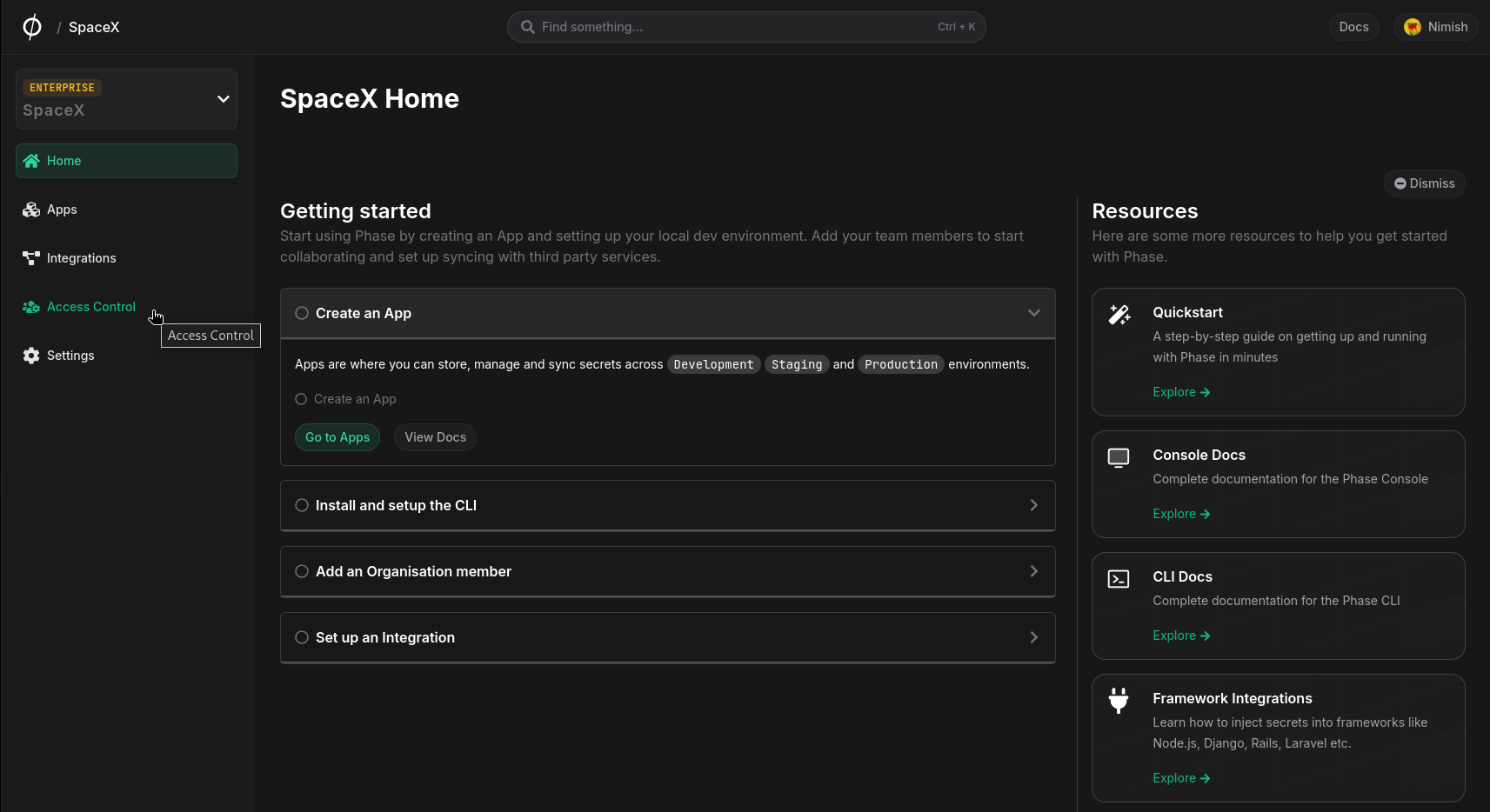
- Navigate to the Access Control page from the sidebar and click on the Members tab.
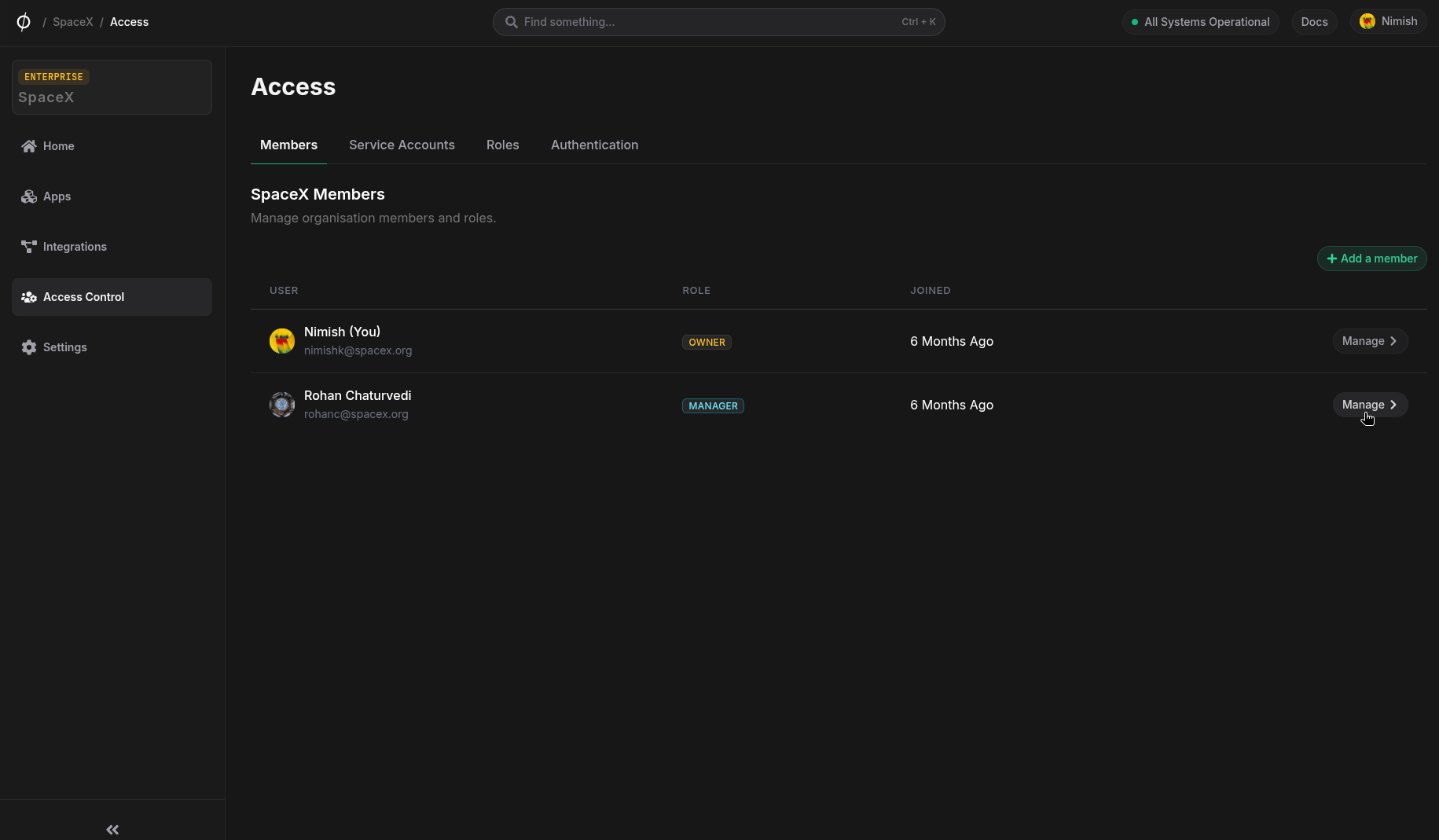
- Find the user whose role you want to update and click the manage button.
- In the Role section, select the desired role from the dropdown.
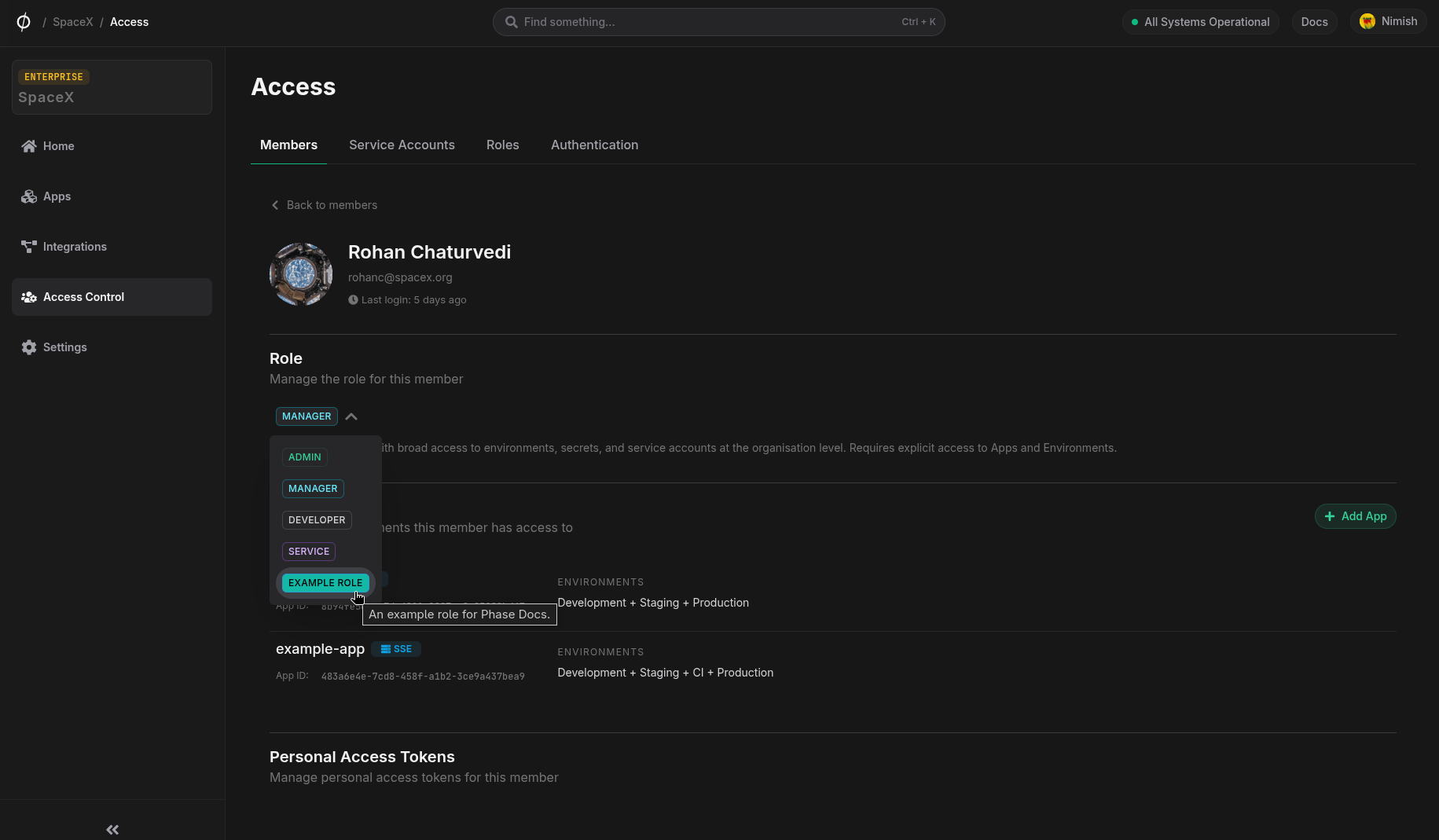
- Once selected, you will see a toast notification confirming that the role has been updated.
Managed Roles
Phase provides managed roles out of the box to every organization.
Owner
The organization owner. This role is automatically assigned when a user creates a new organization. It is unique to a single user and grants access to all resources and actions. Ownership can be transferred to another Admin member from the Organisation Settings.
Organization-level permissions:
| Resource | Access | Read | Create | Update | Delete |
|---|---|---|---|---|---|
| Organisation | Full access | ✅ | ✅ | ✅ | ✅ |
| Billing | Full access | ✅ | ✅ | ✅ | ✅ |
| Apps | Full access | ✅ | ✅ | ✅ | ✅ |
| Members | Full access | ✅ | ✅ | ✅ | ✅ |
| Member Personal Access Tokens | Full access | ✅ | ✅ | ✅ | ✅ |
| Service Accounts | Full access | ✅ | ✅ | ✅ | ✅ |
| Service Account Tokens | Full access | ✅ | ✅ | ✅ | ✅ |
| External Identities | Full access | ✅ | ✅ | ✅ | ✅ |
| Roles | Full access | ✅ | ✅ | ✅ | ✅ |
| Integration Credentials | Full access | ✅ | ✅ | ✅ | ✅ |
| Network Access Policies | Full access | ✅ | ✅ | ✅ | ✅ |
| Teams | Full access | ✅ | ✅ | ✅ | ✅ |
| SCIM | Full access | ✅ | ✅ | ✅ | ✅ |
| SSO | Full access | ✅ | ✅ | ✅ | ✅ |
App-level permissions:
| Resource | Access | Read | Create | Update | Delete |
|---|---|---|---|---|---|
| Environments | Full access | ✅ | ✅ | ✅ | ✅ |
| Secrets | Full access | ✅ | ✅ | ✅ | ✅ |
| DynamicSecretLeases | Full access | ✅ | ✅ | ✅ | ✅ |
| Lockbox | Full access | ✅ | ✅ | ✅ | ✅ |
| Logs | Full access | ✅ | ✅ | ✅ | ✅ |
| Tokens (Legacy) | Full access | ✅ | ✅ | ✅ | ✅ |
| Members | Full access | ✅ | ✅ | ✅ | ✅ |
| Service Accounts | Full access | ✅ | ✅ | ✅ | ✅ |
| Integrations | Full access | ✅ | ✅ | ✅ | ✅ |
| Encryption Mode | Full access | ✅ | ✅ | ||
| Teams | Full access | ✅ | ✅ | ✅ | ✅ |
Admin
Admin users have access to most resources and permissions, and have global access to all Apps and Environments.
Organization-level permissions:
| Resource | Access | Read | Create | Update | Delete |
|---|---|---|---|---|---|
| Organisation | Custom access | ✅ | ❌ | ✅ | ❌ |
| Billing | Full access | ✅ | ✅ | ✅ | ✅ |
| Apps | Full access | ✅ | ✅ | ✅ | ✅ |
| Members | Full access | ✅ | ✅ | ✅ | ✅ |
| Member Personal Access Tokens | Full access | ✅ | ✅ | ✅ | ✅ |
| Service Accounts | Full access | ✅ | ✅ | ✅ | ✅ |
| Service Account Tokens | Full access | ✅ | ✅ | ✅ | ✅ |
| External Identities | Full access | ✅ | ✅ | ✅ | ✅ |
| Roles | Full access | ✅ | ✅ | ✅ | ✅ |
| Integration Credentials | Full access | ✅ | ✅ | ✅ | ✅ |
| Network Access Policies | Full access | ✅ | ✅ | ✅ | ✅ |
| Teams | Full access | ✅ | ✅ | ✅ | ✅ |
| SCIM | Full access | ✅ | ✅ | ✅ | ✅ |
| SSO | Full access | ✅ | ✅ | ✅ | ✅ |
App-level permissions:
| Resource | Access | Read | Create | Update | Delete |
|---|---|---|---|---|---|
| Environments | Full access | ✅ | ✅ | ✅ | ✅ |
| Secrets | Full access | ✅ | ✅ | ✅ | ✅ |
| DynamicSecretLeases | Full access | ✅ | ✅ | ✅ | ✅ |
| Lockbox | Full access | ✅ | ✅ | ✅ | ✅ |
| Logs | Full access | ✅ | ✅ | ✅ | ✅ |
| Tokens (Legacy) | Full access | ✅ | ✅ | ✅ | ✅ |
| Members | Full access | ✅ | ✅ | ✅ | ✅ |
| Service Accounts | Full access | ✅ | ✅ | ✅ | ✅ |
| Integrations | Full access | ✅ | ✅ | ✅ | ✅ |
| Encryption Mode | Custom access | ✅ | ✅ | ||
| Teams | Full access | ✅ | ✅ | ✅ | ✅ |
The Owner and Admin roles have global access. Learn more about global access here.
Manager
Management users with broad access to environments, secrets, and service accounts at the organization level. Requires explicit access to Apps and Environments.
Organization-level permissions:
| Resource | Access | Read | Create | Update | Delete |
|---|---|---|---|---|---|
| Organisation | Read access | ✅ | ❌ | ❌ | ❌ |
| Billing | Full access | ✅ | ✅ | ✅ | ✅ |
| Apps | Full access | ✅ | ✅ | ✅ | ✅ |
| Members | Full access | ✅ | ✅ | ✅ | ✅ |
| Member Personal Access Tokens | No access | ❌ | ❌ | ❌ | ❌ |
| Service Accounts | Full access | ✅ | ✅ | ✅ | ✅ |
| Service Account Tokens | Full access | ✅ | ✅ | ✅ | ✅ |
| External Identities | Full access | ✅ | ✅ | ✅ | ✅ |
| Roles | Full access | ✅ | ✅ | ✅ | ✅ |
| Integration Credentials | Full access | ✅ | ✅ | ✅ | ✅ |
| Network Access Policies | Full access | ✅ | ✅ | ✅ | ✅ |
| Teams | Full access | ✅ | ✅ | ✅ | ✅ |
| SCIM | No access | ❌ | ❌ | ❌ | ❌ |
| SSO | No access | ❌ | ❌ | ❌ | ❌ |
App-level permissions:
| Resource | Access | Read | Create | Update | Delete |
|---|---|---|---|---|---|
| Environments | Custom access | ✅ | ✅ | ✅ | ❌ |
| Secrets | Full access | ✅ | ✅ | ✅ | ✅ |
| DynamicSecretLeases | Full access | ✅ | ✅ | ✅ | ✅ |
| Lockbox | Full access | ✅ | ✅ | ✅ | ✅ |
| Logs | Full access | ✅ | ✅ | ✅ | ✅ |
| Tokens (Legacy) | Full access | ✅ | ✅ | ✅ | ✅ |
| Members | Full access | ✅ | ✅ | ✅ | ✅ |
| Service Accounts | Full access | ✅ | ✅ | ✅ | ✅ |
| Integrations | Full access | ✅ | ✅ | ✅ | ✅ |
| Encryption Mode | Custom access | ✅ | ❌ | ✅ | ❌ |
| Teams | Full access | ✅ | ✅ | ✅ | ✅ |
Service
Default role for Service Accounts, providing programmatic access to secrets without access to other organization or app resources.
Organization-level permissions:
| Resource | Access | Read | Create | Update | Delete |
|---|---|---|---|---|---|
| Organisation | No access | ❌ | ❌ | ❌ | ❌ |
| Billing | No access | ❌ | ❌ | ❌ | ❌ |
| Apps | Custom access | ✅ | ✅ | ✅ | ❌ |
| Members | Read access | ✅ | ❌ | ❌ | ❌ |
| Member Personal Access Tokens | No access | ❌ | ❌ | ❌ | ❌ |
| Service Accounts | Read access | ✅ | ❌ | ❌ | ❌ |
| Service Account Tokens | Read access | ✅ | ❌ | ❌ | ❌ |
| External Identities | Read access | ✅ | ❌ | ❌ | ❌ |
| Roles | Read access | ✅ | ❌ | ❌ | ❌ |
| Integration Credentials | Read access | ✅ | ❌ | ❌ | ❌ |
| Network Access Policies | Read access | ✅ | ❌ | ❌ | ❌ |
| Teams | No access | ❌ | ❌ | ❌ | ❌ |
| SCIM | No access | ❌ | ❌ | ❌ | ❌ |
| SSO | No access | ❌ | ❌ | ❌ | ❌ |
App-level permissions:
| Resource | Access | Read | Create | Update | Delete |
|---|---|---|---|---|---|
| Environments | Full access | ✅ | ✅ | ✅ | ✅ |
| Secrets | Full access | ✅ | ✅ | ✅ | ✅ |
| DynamicSecretLeases | Full access | ✅ | ✅ | ❌ | ❌ |
| Lockbox | No access | ❌ | ❌ | ❌ | ❌ |
| Logs | No access | ❌ | ❌ | ❌ | ❌ |
| Tokens (Legacy) | No access | ❌ | ❌ | ❌ | ❌ |
| Members | Read access | ✅ | ❌ | ❌ | ❌ |
| Service Accounts | Read access | ✅ | ❌ | ❌ | ❌ |
| Integrations | Read access | ✅ | ❌ | ❌ | ❌ |
| Encryption Mode | Read access | ✅ | ❌ | ❌ | ❌ |
| Teams | Read access | ✅ | ❌ | ❌ | ❌ |
Developer
Developers have limited permissions at the organization level and must be given explicit access to Apps and Environments.
Organization-level permissions:
| Resource | Access | Read | Create | Update | Delete |
|---|---|---|---|---|---|
| Organisation | No access | ❌ | ❌ | ❌ | ❌ |
| Billing | No access | ❌ | ❌ | ❌ | ❌ |
| Apps | Read access | ✅ | ❌ | ❌ | ❌ |
| Members | Read access | ✅ | ❌ | ❌ | ❌ |
| Member Personal Access Tokens | No access | ❌ | ❌ | ❌ | ❌ |
| Service Accounts | No access | ❌ | ❌ | ❌ | ❌ |
| Service Account Tokens | No access | ❌ | ❌ | ❌ | ❌ |
| External Identities | No access | ❌ | ❌ | ❌ | ❌ |
| Roles | Read access | ✅ | ❌ | ❌ | ❌ |
| Integration Credentials | Custom access | ✅ | ✅ | ✅ | ❌ |
| Network Access Policies | Read access | ✅ | ❌ | ❌ | ❌ |
| Teams | Read access | ✅ | ❌ | ❌ | ❌ |
| SCIM | No access | ❌ | ❌ | ❌ | ❌ |
| SSO | No access | ❌ | ❌ | ❌ | ❌ |
App-level permissions:
| Resource | Access | Read | Create | Update | Delete |
|---|---|---|---|---|---|
| Environments | Custom access | ✅ | ✅ | ✅ | ❌ |
| Secrets | Full access | ✅ | ✅ | ✅ | ✅ |
| DynamicSecretLeases | Full access | ✅ | ✅ | ❌ | ❌ |
| Lockbox | Full access | ✅ | ✅ | ✅ | ✅ |
| Logs | Read access | ✅ | ❌ | ❌ | ❌ |
| Tokens (Legacy) | Custom access | ✅ | ✅ | ❌ | ❌ |
| Members | Read access | ✅ | ❌ | ❌ | ❌ |
| Service Accounts | Custom access | ❌ | ✅ | ❌ | ❌ |
| Integrations | Full access | ✅ | ✅ | ✅ | ✅ |
| Encryption Mode | Custom access | ✅ | ✅ | ||
| Teams | Read access | ✅ | ❌ | ❌ | ❌ |
Custom Roles
The ability to create and manage custom roles is available for organizations with a Pro or an Enterprise tier subscription.
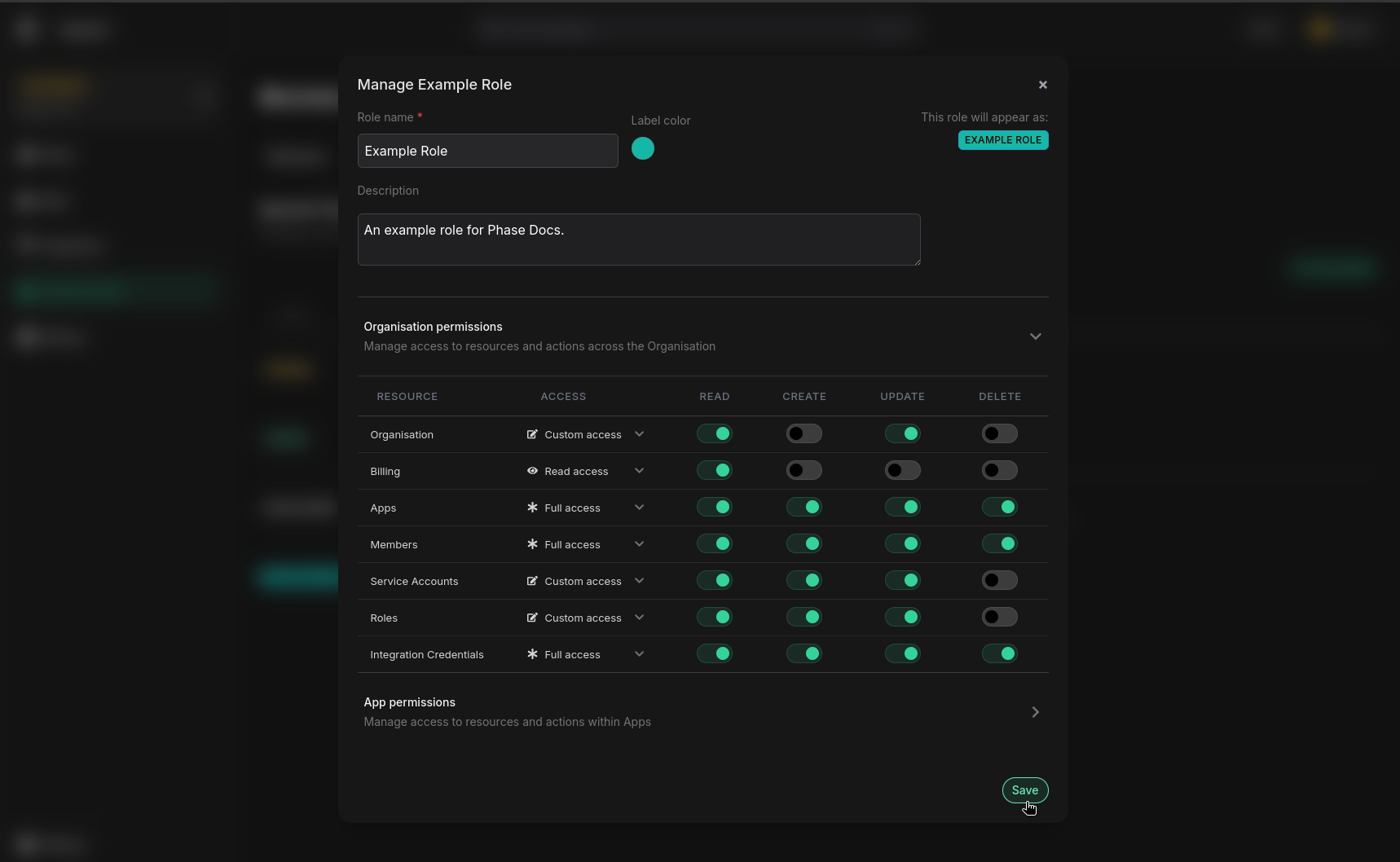
In addition to the managed roles, Phase allows you to create custom roles tailored to your organization's specific security needs.
Creating Custom Roles
Please make sure to follow the Principle of least privilege when setting the access policy for roles. Casting a wider scope may inadvertently lead to Privilege escalation.
- Navigate to the Access Control page from the sidebar and click on the Roles tab.
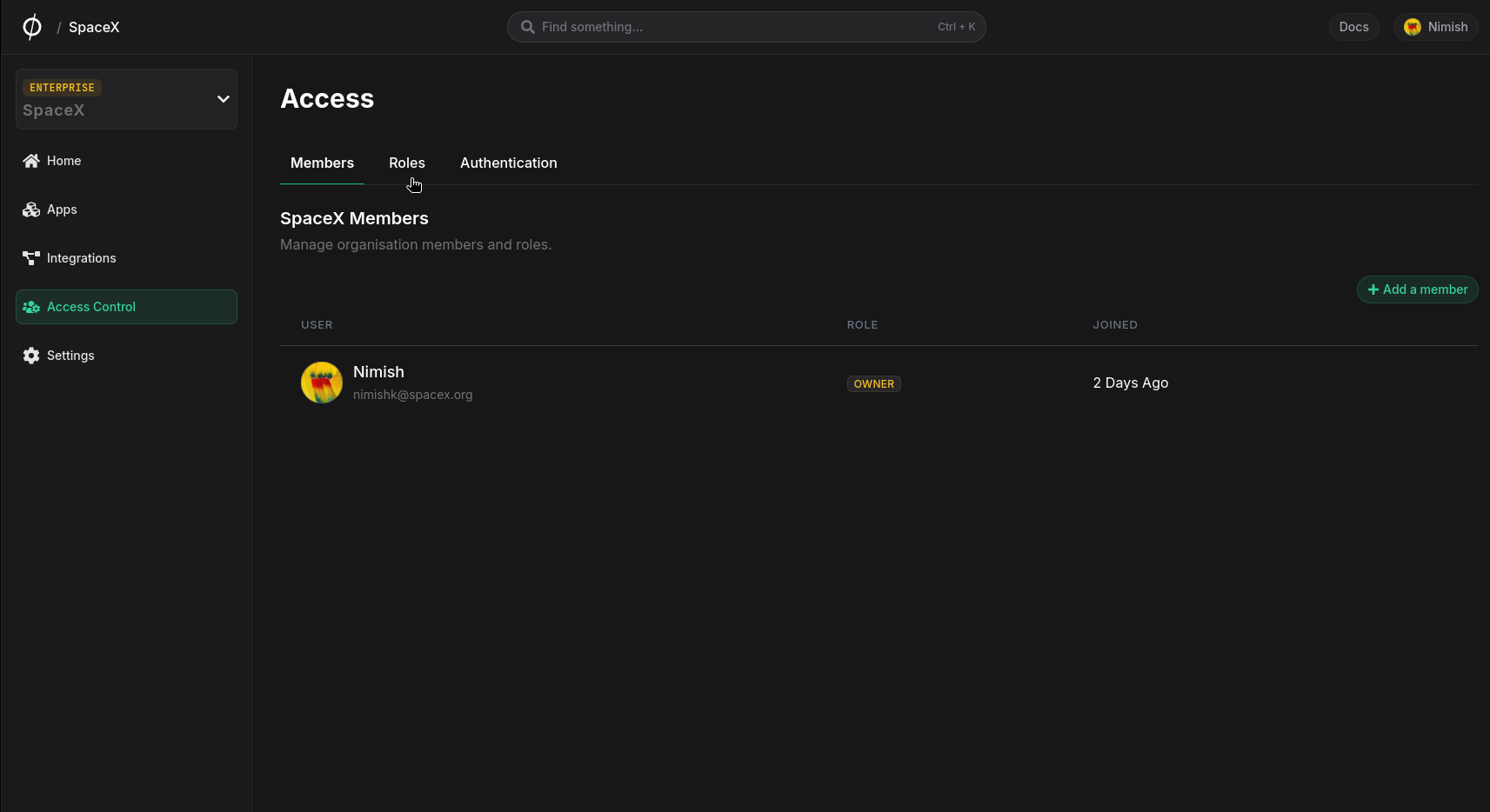
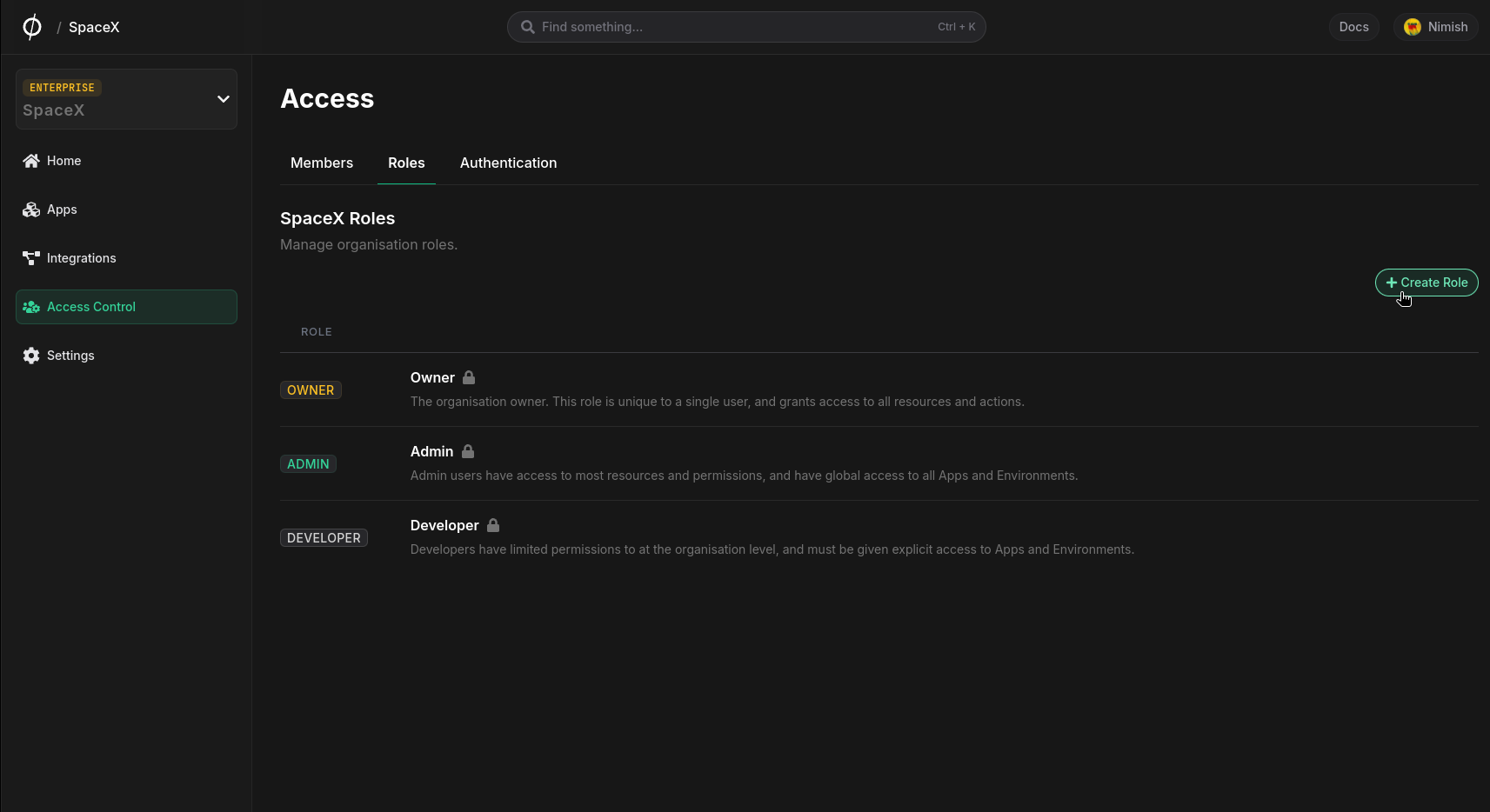
- Click on "Create Role".
- Provide a name and description for the role. (Role name is mandatory)
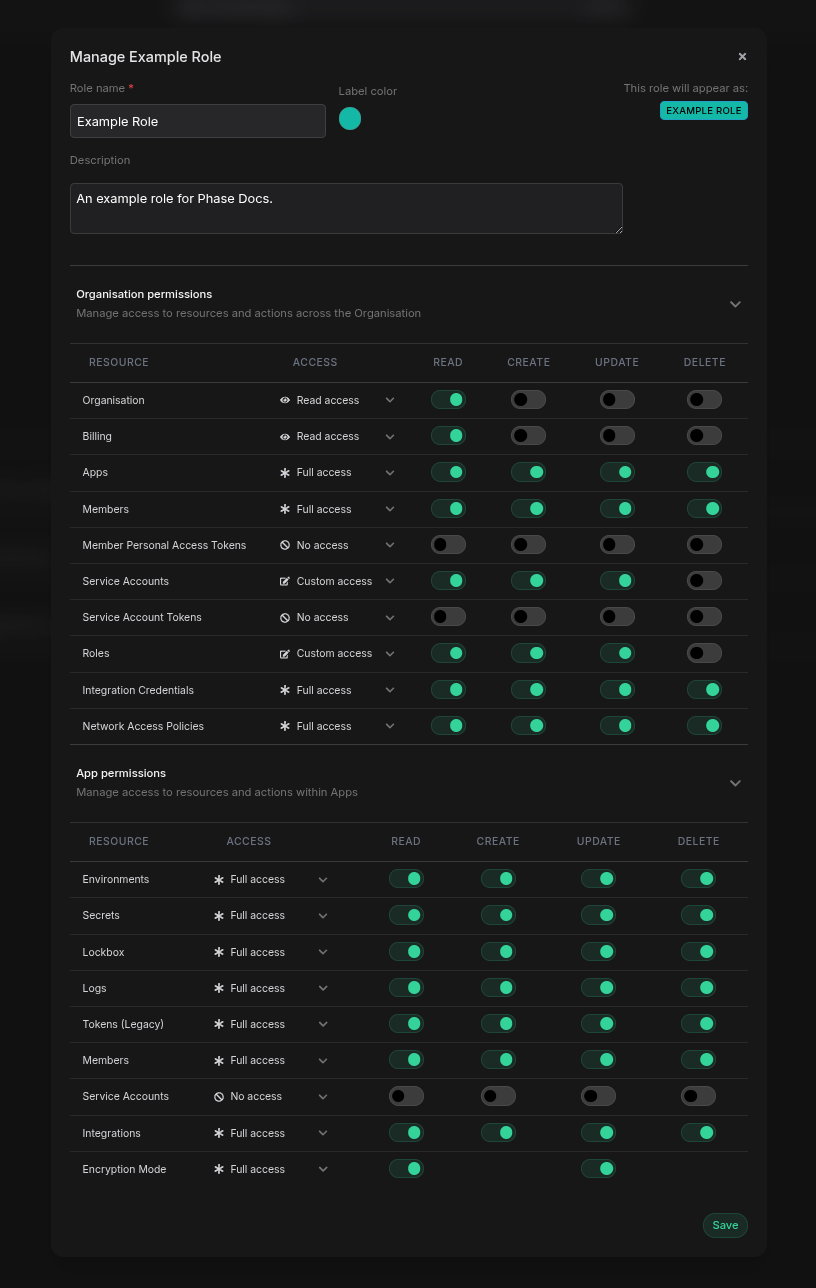
- Expand the Organisation and the App permissions sections by clicking on each of them and select the desired policy permissions by clicking the dropdown for each resource in the Access column and selecting one of the following:
- 🚫 No access
- 👁️ Read access
- ❄️ Full access
- 📝 Custom access
Alternatively, you may provision a custom access policy by toggling switches in each of the CRUD operations for a given resource.
- Save the new role.
Resource Permissions Cheat Sheet
Some actions require a combination of permissions across multiple resources. Below is a list of common actions that require a combination of two of more permissions:
- To update the role of a user in your Organization:
Members:updateRoles:read
- Adding members to Apps or managing the scope of a member's access to Environments:
AppMembers:updateMembers:readEnvironments:read
- Updating the third party integration credentials used for a given integration in an App:
Integrations:updateIntegrationCredentials:read
- Creating an new third party integration inside of an App
Integrations:createEnvironments:read
- Creating a new Service Token:
Tokens:createEnvironments:read
- Enable or disable SSE (Server-side Encryption):
EncryptionMode:updateEnvironments:read- Access to all environments in the App (only to enable SSE)
- To view and delete other users Personal Access Tokens:
MemberPersonalAccessTokens:readMemberPersonalAccessTokens:delete
- Adding or removing a Team's access to an App:
Teams:createorTeams:delete(app-level)Teams:read(organisation-level)
- Managing a Team's environment scope within an App:
Teams:update(app-level)Teams:read(organisation-level)
- To Manage Network Access Policies of a User or Service Account:
Members:readMembers:updateServiceAccounts:readServiceAccounts:updateNetworkAccessPolicies:read
Editing Custom Roles
- Navigate to the Access Control page from the sidebar and click on the Roles tab.
- Find the custom role you want to edit, hover over it and click ⚙️ Manage.
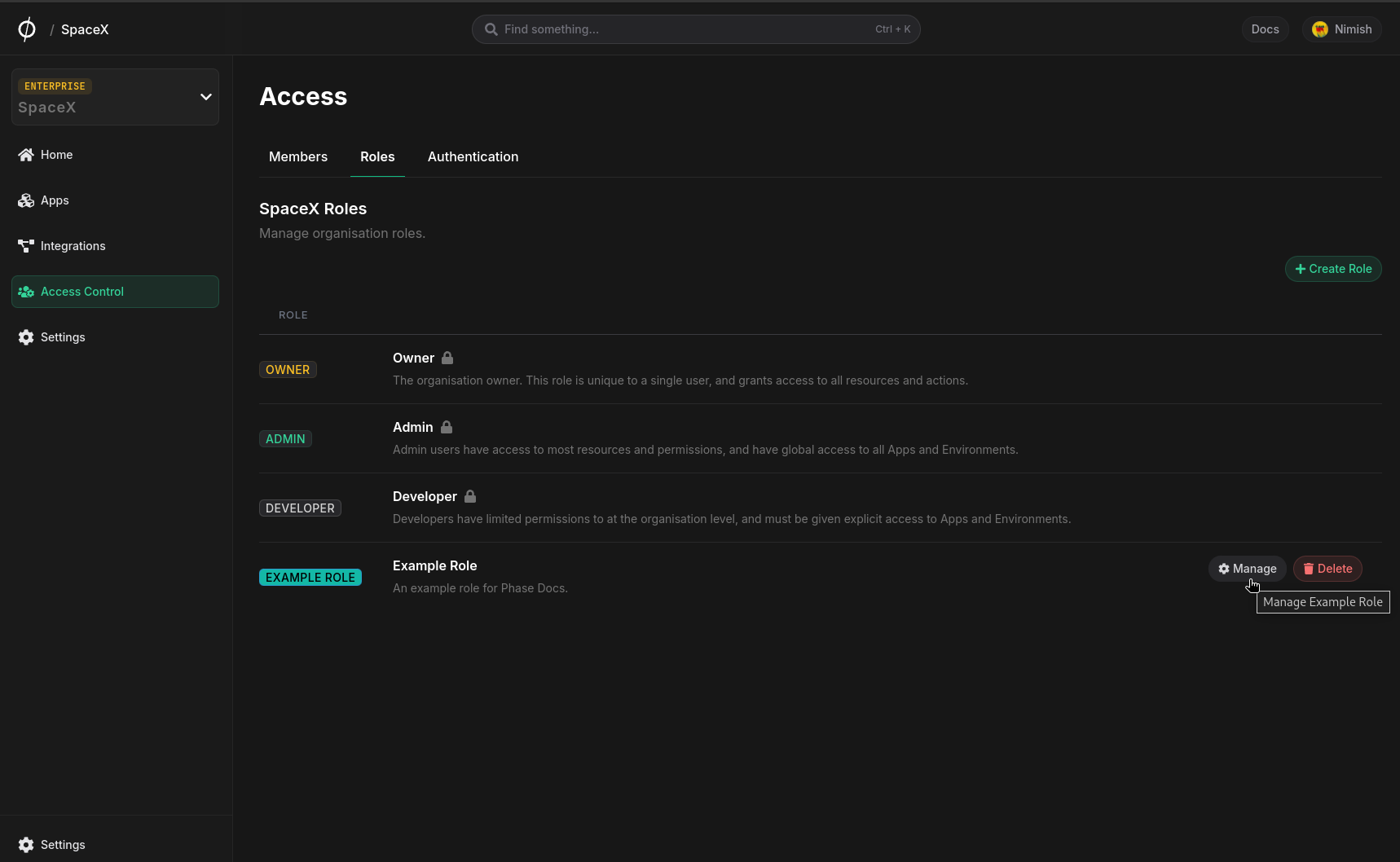
- Modify the role as needed.
- Save your changes.