Users
Learn how User accounts work in Phase.
Account keys & Signup
Phase is end-to-end encrypted, which means that each member of an Organisation has a unique set of encryption keys that only the accoutn Owner has access to.
You can sign up for Phase using email and password or via an SSO provider (Google, GitHub, GitLab, etc.). Email/password signups on Phase Cloud require email verification before the account is activated.
Step 1: Create a sudo password
First, you must create a strong password, known as the sudo password. We call it this because it is used to secure your account encryption keys. Certain actions that require access to your account keys can only be performed when your account keyring is unlocked by entering this password.
The sudo password must:
- Be 16 characters or longer
- Contain letters and numbers
We suggest using a long phrase that you can easily remember.
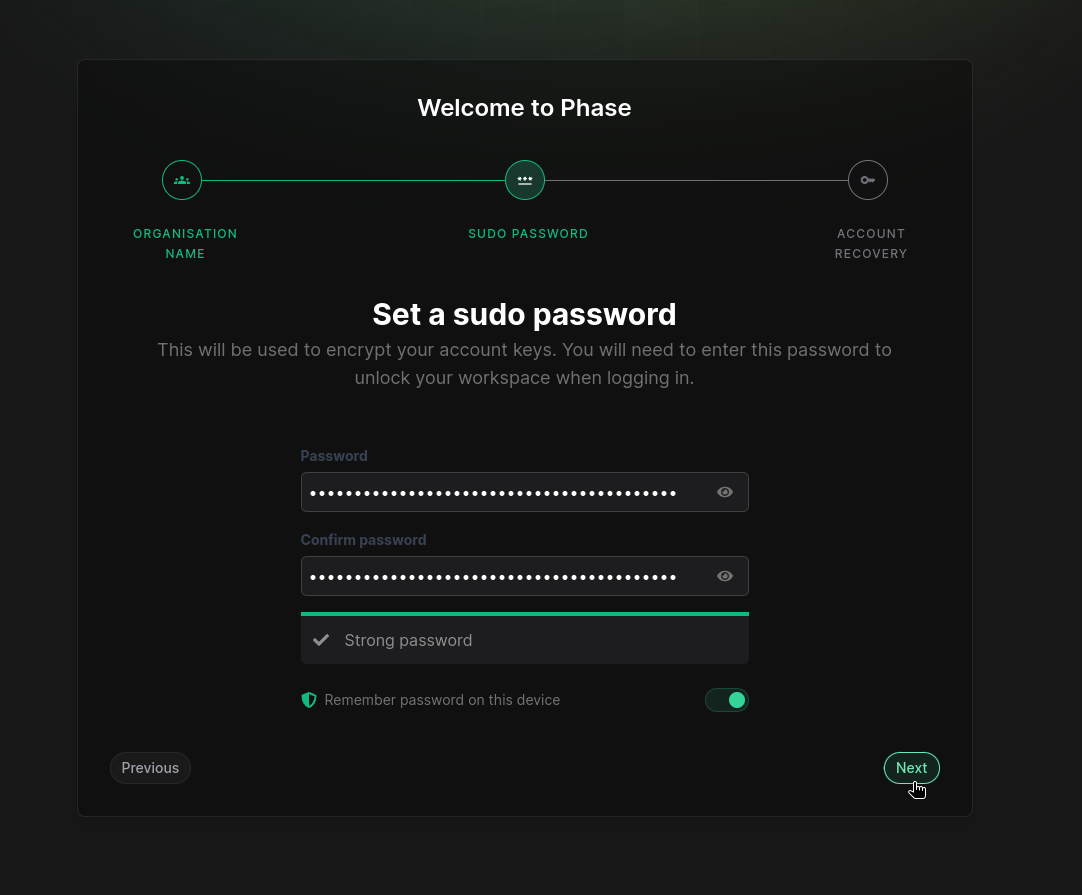
By default, the "Remember password on this device" option is turned on. If you are not on a trusted machine, you may want to toggle this off for increased security.
Step 2: Save your account recovery kit
In case you lose or forget your sudo password, you will need a recovery phrase to restore your account keys. This step provides you with a downloadable recovery kit that you can print out and store somewhere safe.
You can also copy the entire contents of the recovery kit to store as a secure note in a password manager or digital wallet. You can choose either option, but we recommend both.
The recovery phrase in the account recovery kit is read left to right, top to bottom. You may simply highlight all the words and copy paste them in the recovery box. The recovery box will auto detect the order.
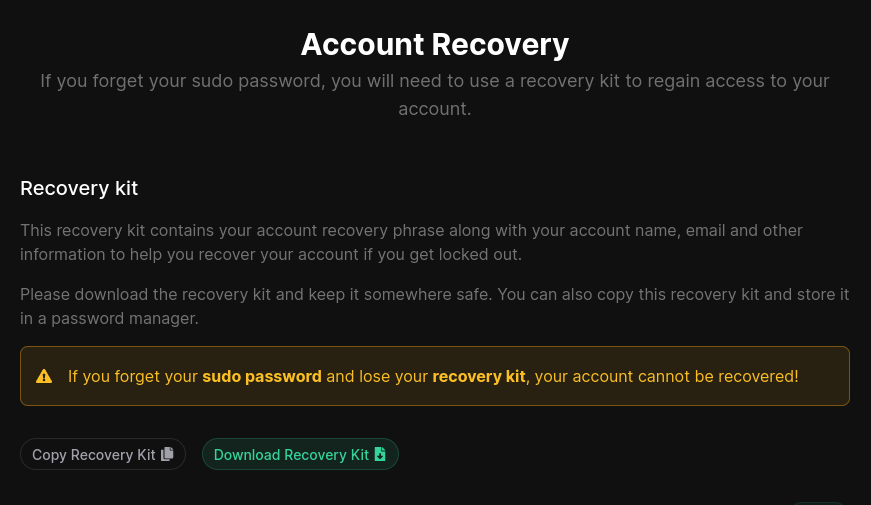
Make sure to save your recovery kit in a safe place! If you forget your sudo
password, it is the only way to regain access to your account.
If a non-owner user forgets their account sudo password and cannot access their recovery phrase, they can be removed from the organisation and re-added by another user. However, if the Organisation Owner forgets their sudo password and cannot access their account recovery phrase they will have lost access to the account permanently. To mitigate this risk, ownership can be transferred to another Admin member who has access to their recovery kit.
The sudo password
Your sudo password is used to encrypt your account keys. Performing certain privileged actions such as creating Apps, managing Environments and Tokens, or managing User access requires access to your account keys.
If you chose not to remember your password during onboarding, you will be prompted to enter your sudo password when you first perform a privileged action. This unlock screen will look like this:
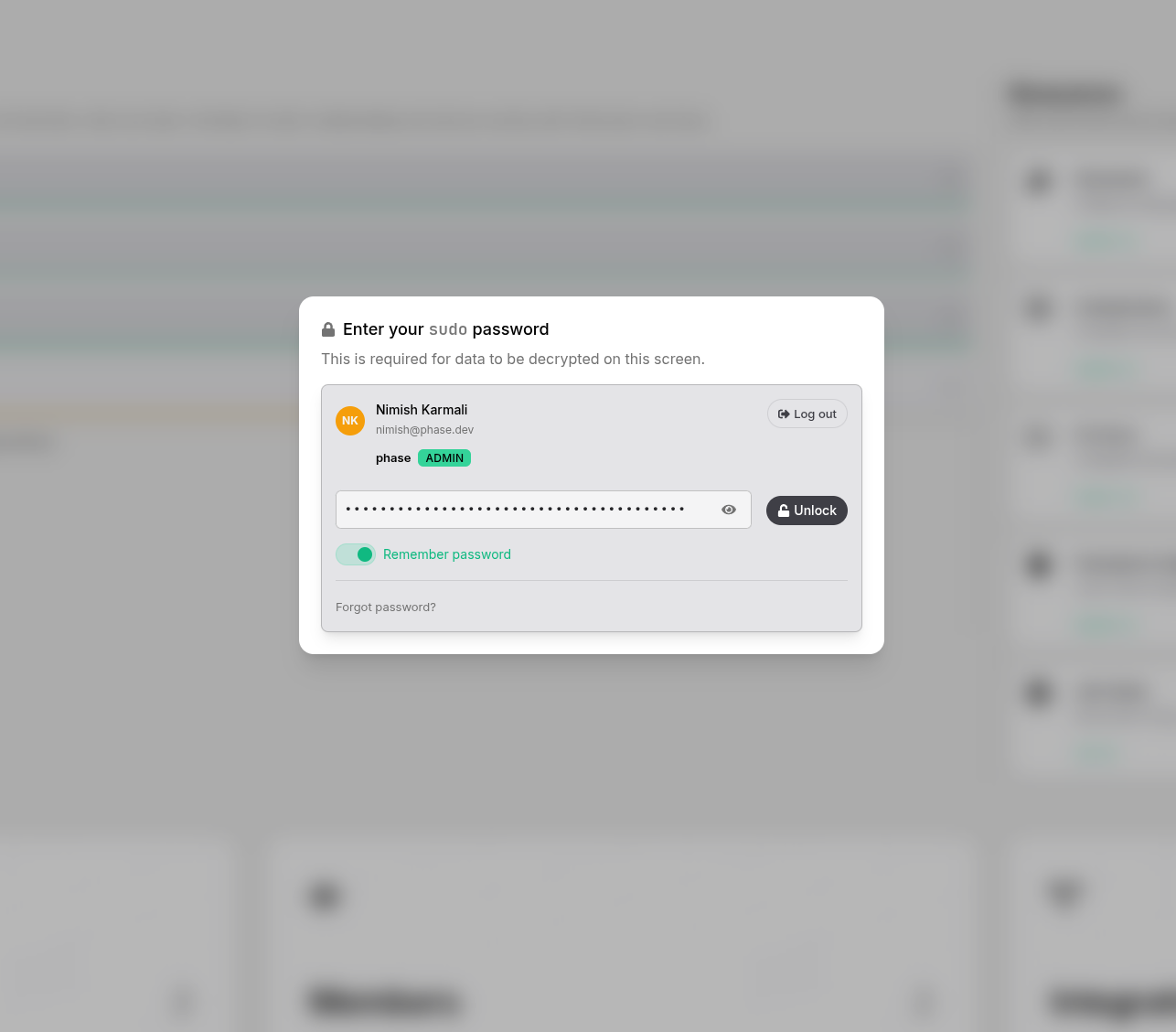
When entered correctly, your account keys will be decrypted and held in memory. You will not need to enter this password again for the duration of your session, unless you close the tab or reload the page using the browser 'refresh' action.
For convenience, you can choose to remember your password on your current device:
- Toggle on "Remember password" below the password input field.
This will automatically unlock your keyring when you log in on this device in the future. However, if you're using a shared or public computer, it's recommended to keep this option off for security reasons.
If you find entering the password frequently inconvenient, you can enable the "Remember password" option at any time from this unlock screen.
Remember: Your sudo password is a critical security measure. Always use a strong, unique password and be cautious about where you choose to remember it.
Add users to an Organisation
You can add a user as an Organistion member by inviting them from the Organisation members screen.
To invite a new member, click on the "Add a member" button, enter the email of the user you wish to invite. An email invite with a link to join your organisation will be sent to their email address. You will also be shown an invite link that can be copied and shared if required.
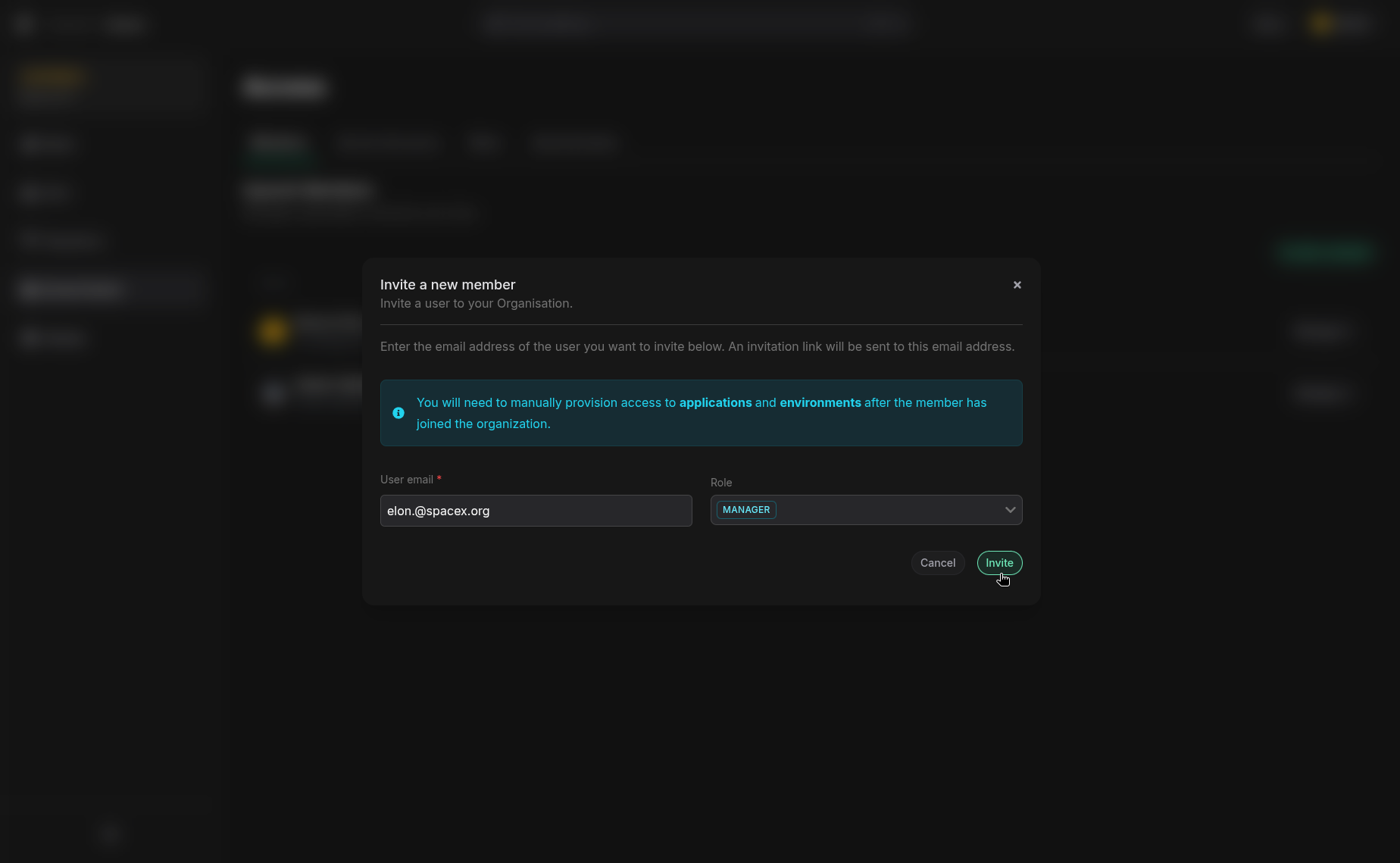
Note: Invited members will not have access to any Apps or Environments after joining your organisation. Once they accept your invite, you can grant them access to specific Apps and Environments from the App Members screen.
Remove a member from an Organisation
You can permanently remove a member from an Organsation from the Organisation members screen. To remove a member, click on the "Remove member" button beside their name.
User Roles
Users in Phase must be given a role. By default, user's are given the managed "Developer" role when they join an Organisation. This role can be changed once they join.