Dynamic Secrets
Dynamic Secrets are credentials for third-party services that are leased on-demand for a limited time. Leases are tied to a specific account, and can be renewed to extend their validity, or revoked manually before they expire. Dynamic Secrets reduce the attack surface of your secrets by limiting the lifespan of active credentials and ensuring that each user has their own set of credentials. Dynamic Secrets can be created manually or automatically through integrations with external systems.
The ability to create and manage Dynamic Secrets is available for organizations with an Enterprise tier subscription.
Supported Providers
Dynamic Secrets are support for the following providers:
Create a Dynamic Secret
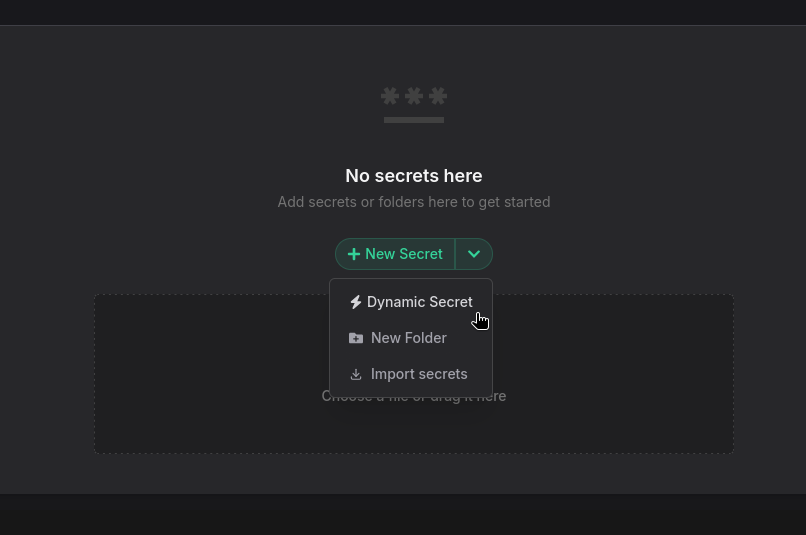
To create a Dynamic Secret, navigate to the "Secrets" tab in the Phase Console, and open a specific Environment. Click on the Dynamic Secret button under the New Secret menu.
You need to Enable Server-side Encryption (SSE) for the App from the Settings tab to use Dynamic Secrets.
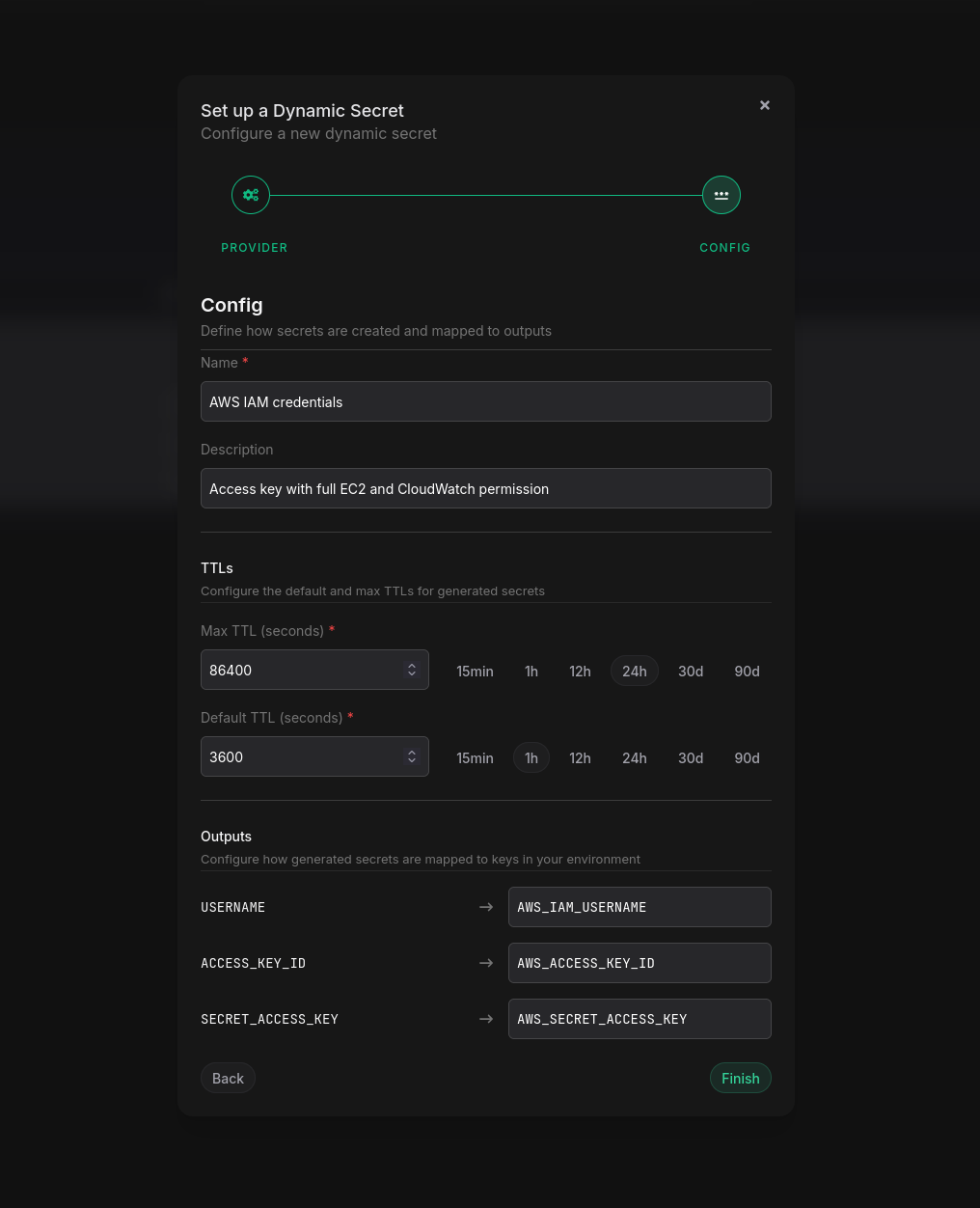
Choose a provider, and then fill in the required fields. The required configuration will vary for each provider, but all dynamic secrets will required:
- Secret Name: A unique name for the secret.
- Description: A brief description of the secret.
- Max TTL: The maximum time-to-live for the secret. This is the maximum duration that the credentials can be leased or renewed for.
- Default TTL: The default time-to-live for the secret. This is the default duration that the credentials will be leased for when they are created. This value must be less than or equal to the Max TTL.
- Outputs: This is a mapping of secrets or credentials created on the third-party service, and how they will be mapped to secrets in your Phase Environment.. These fields will vary depending on the provider.
View the specific instructions for each provider below for provider-specific configuration.
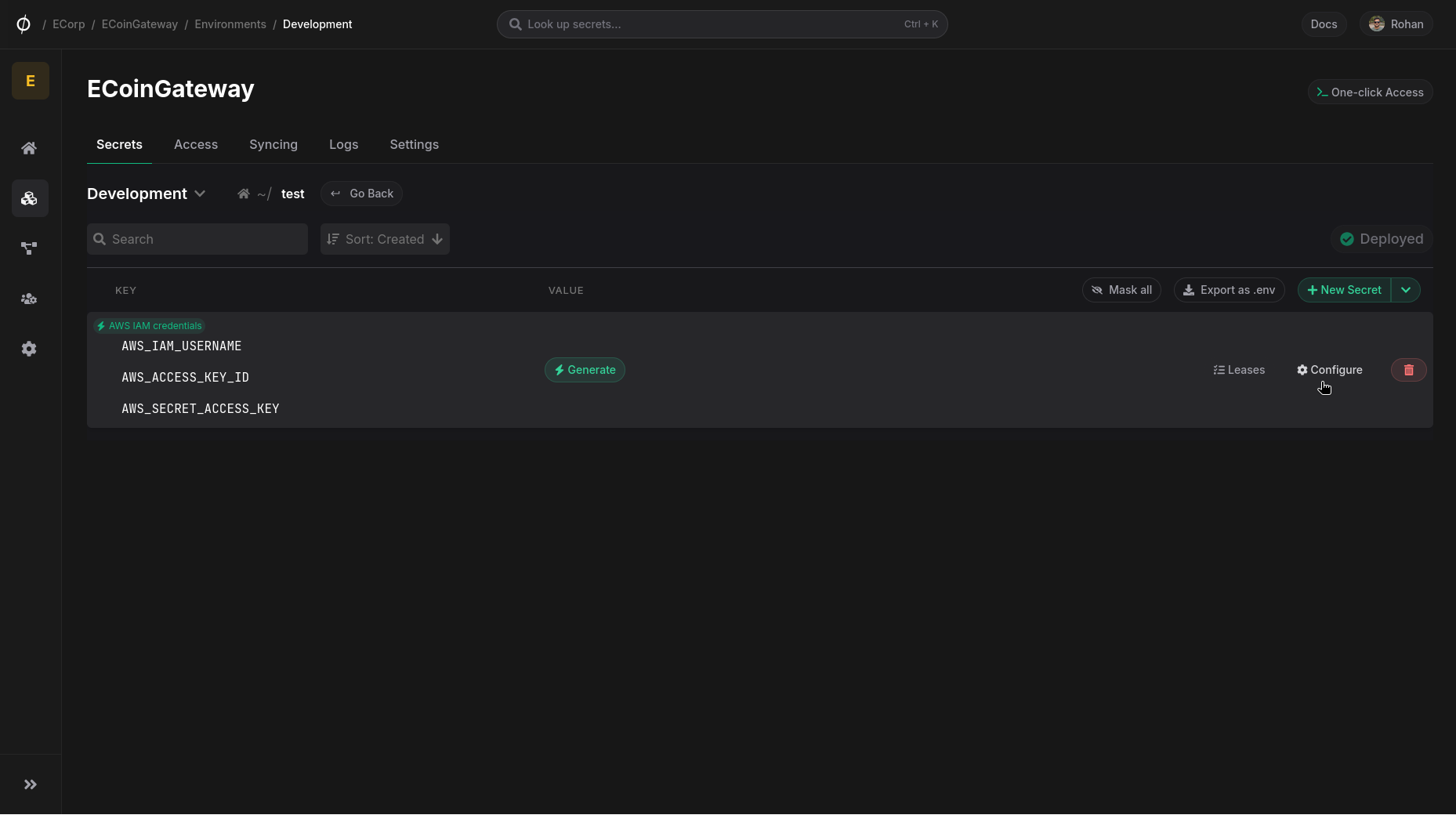
Finally, click Finish to save your configuration and create the Dynamic Secret. Your dynamic secret will now be available in the list of secrets for the Environment. You can update the configuration of the Dynamic Secret at any time by clicking on Configure next to the secret in the list.
Leasing credentials
To lease credentials for a Dynamic Secret, click on the *Generate button for the secret. Provide a name for the lease, a TTL in seconds, and click "Generate". The TTL must be less than or equal to the Max TTL specified in the Dynamic Secret configuration.
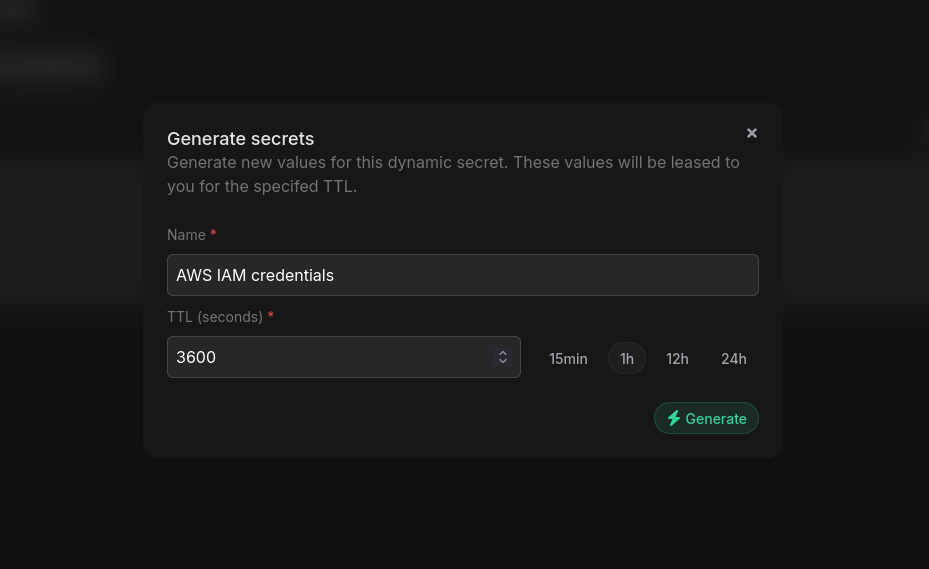
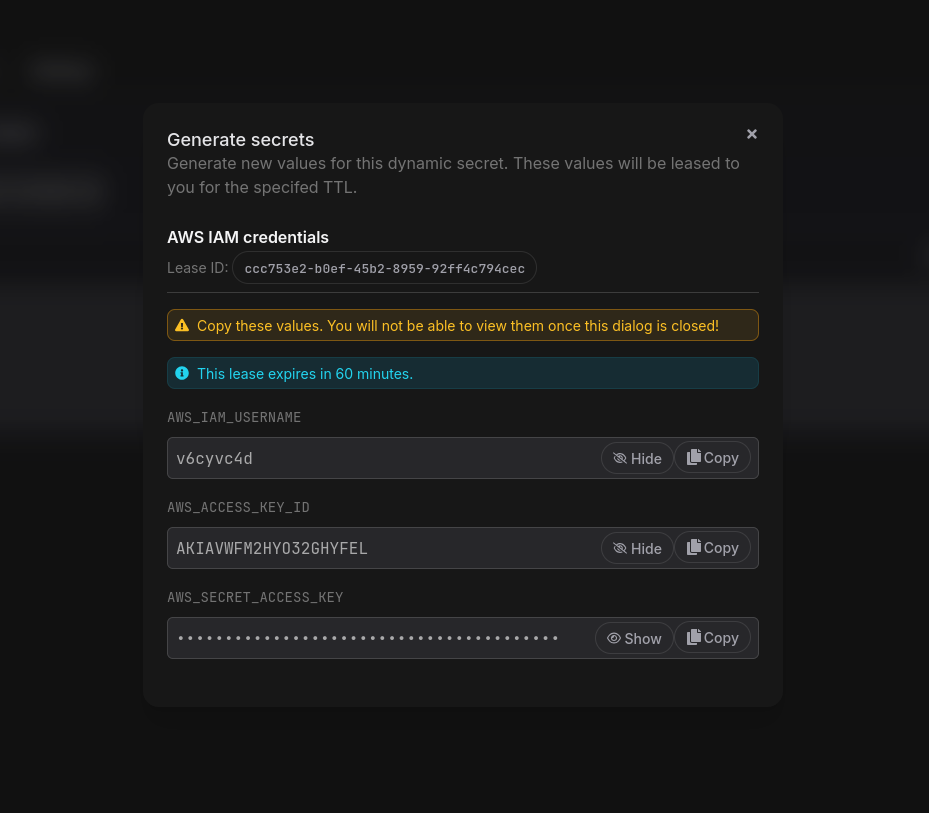
The generated credentials will be displayed, along with the lease ID and lease expiration time. Make sure to copy the credentials, as they will not be displayed again.
Delete a Dynamic Secret
To delete a Dynamic Secret, click on the Delete button next to the secret in the list.
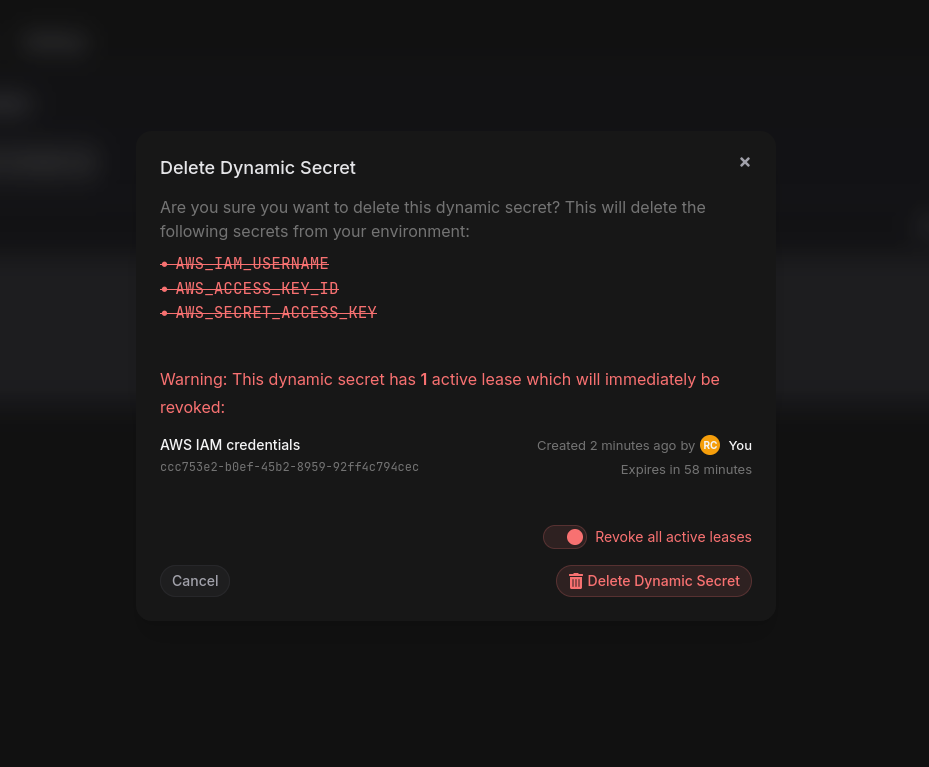
Deleting a Dynamic Secret will immediately revoke all active leases and remove all associated credentials from your environment.
If there are any active leases for the secret, you will need to confirm that you wish to revoke them before deleting the secret. Confirm the deletion in the dialog that appears by clicking the Revoke all active leases toggle if it appears, then click Delete Dynamic Secret.
Managing Leases
To view and manage leases for a Dynamic Secret, click on the Leases button for the secret.
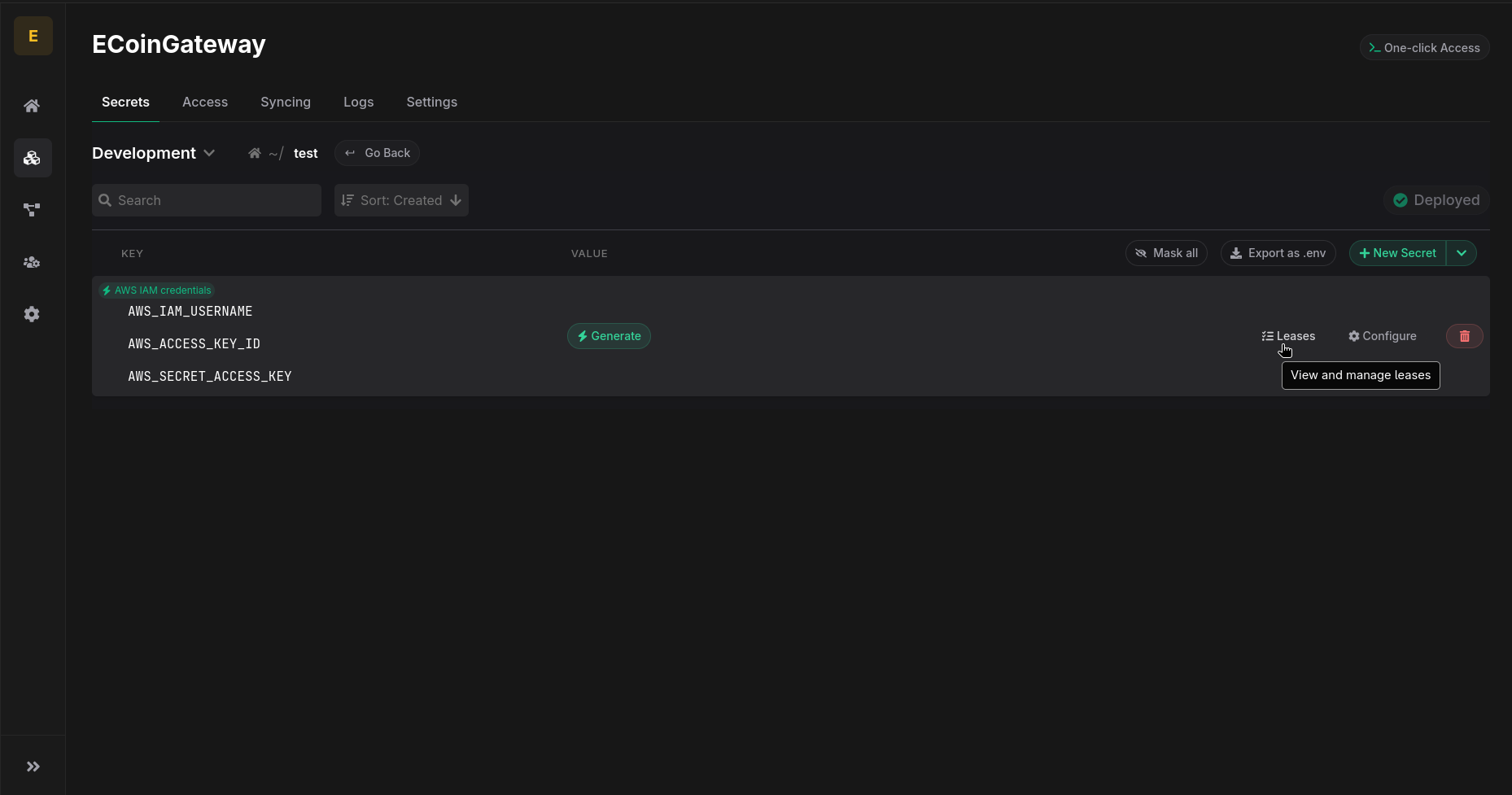
This will open a list of all active leases for the secret, along with their lease ID, name, creation time, expiration time, and status.
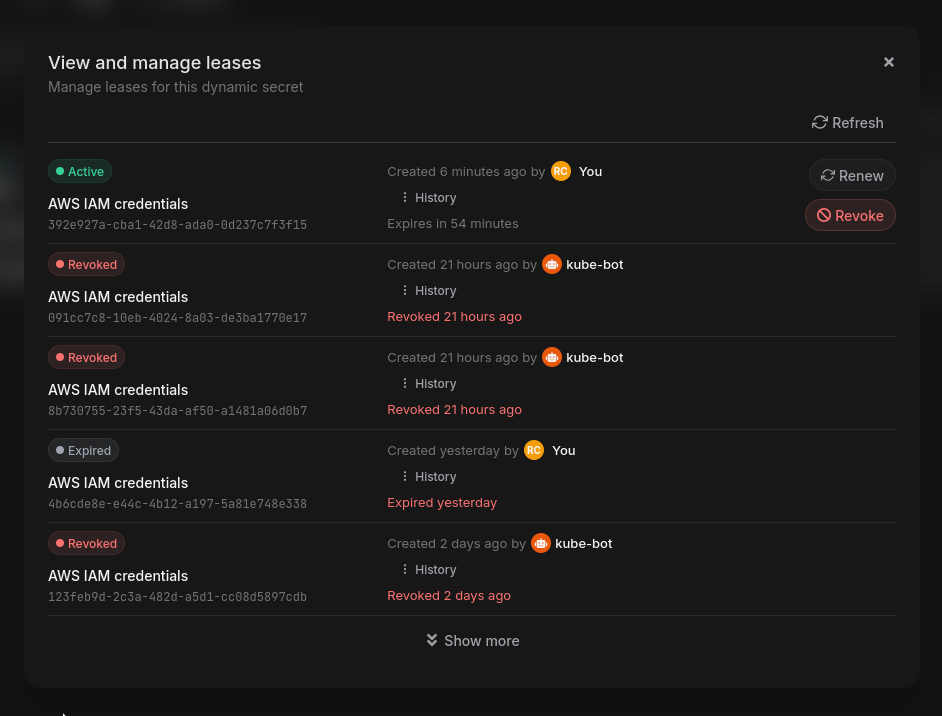
Click on the History button to view the complete event history for a specific lease with detailed log entries for creation, renewal, and revocation events.
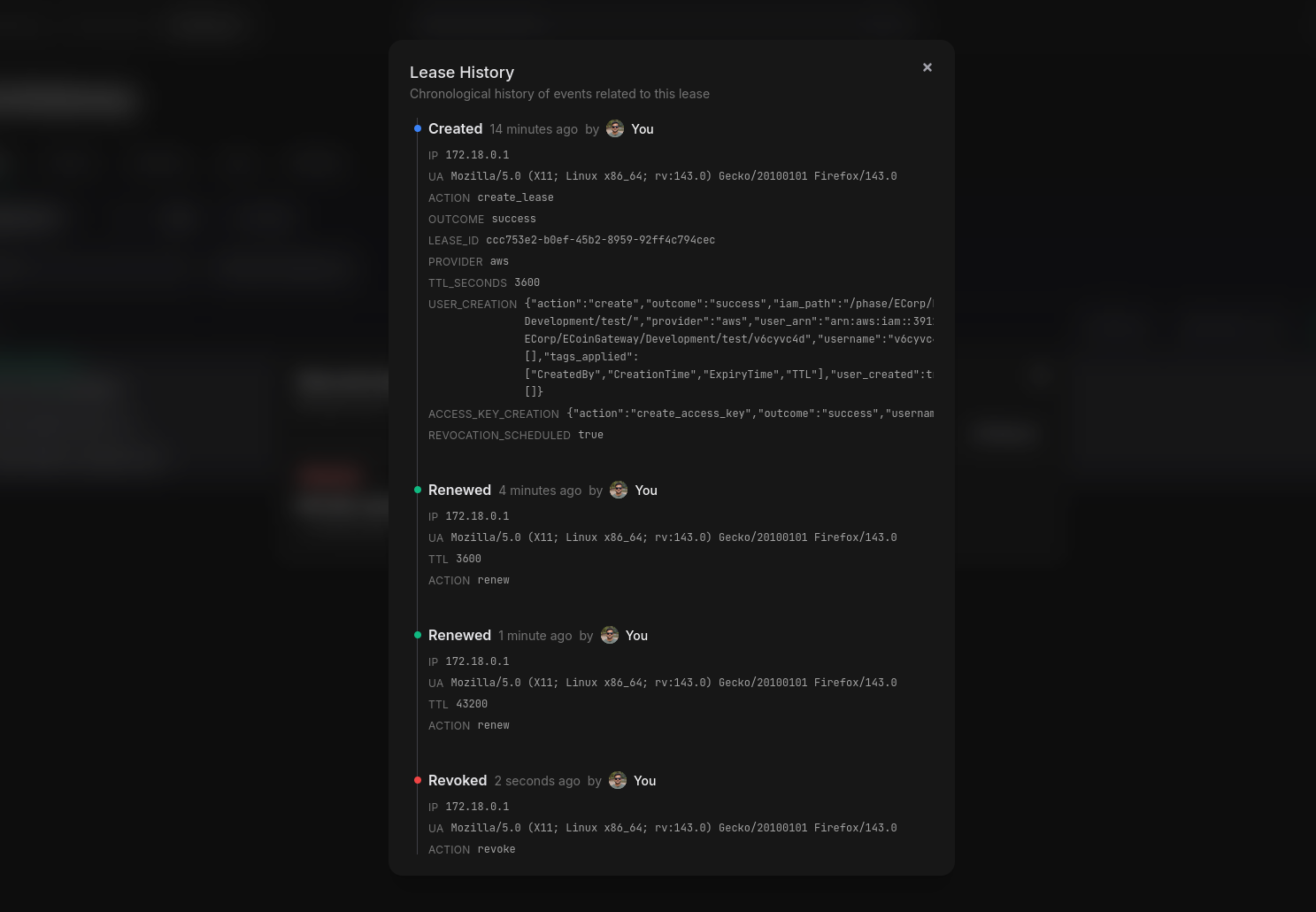
Renew a Lease
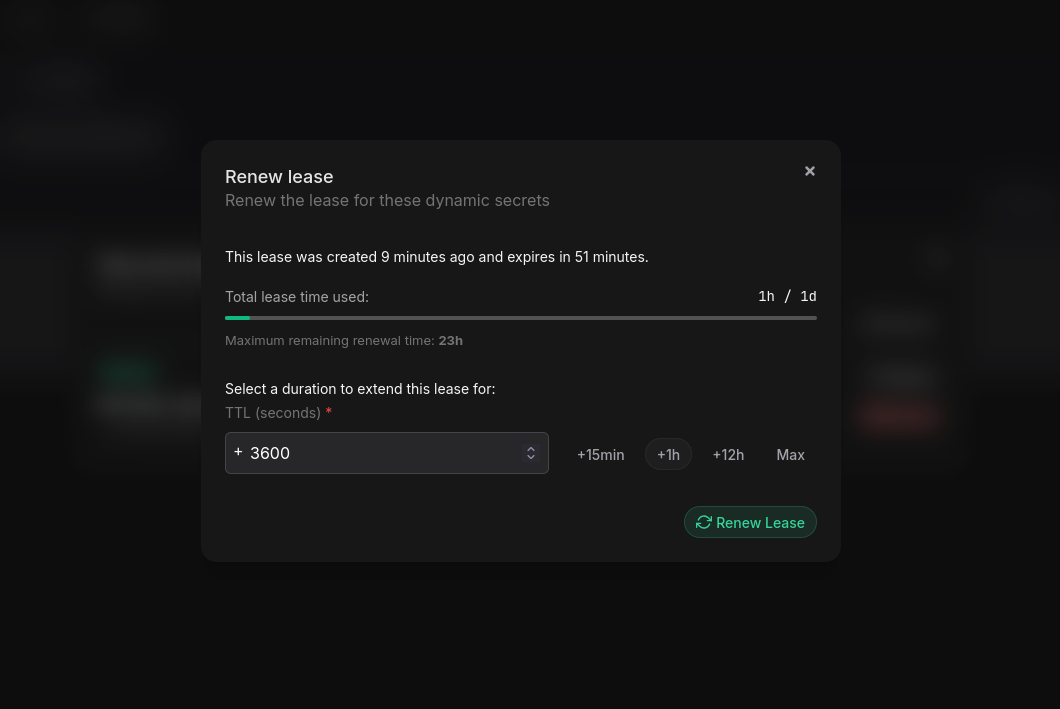
Renewing a lease extends the expiration time of the lease by the specified TTL. The credentials associated with the lease will remain valid until the new expiration time.
To renew a lease, click on the Renew button next to the lease in the list. Provide a TTL in seconds, and click Renew. A lease can only be renewed up to the Max TTL specified in the Dynamic Secret configuration. The available TTL for renewal will be displayed in the dialog.
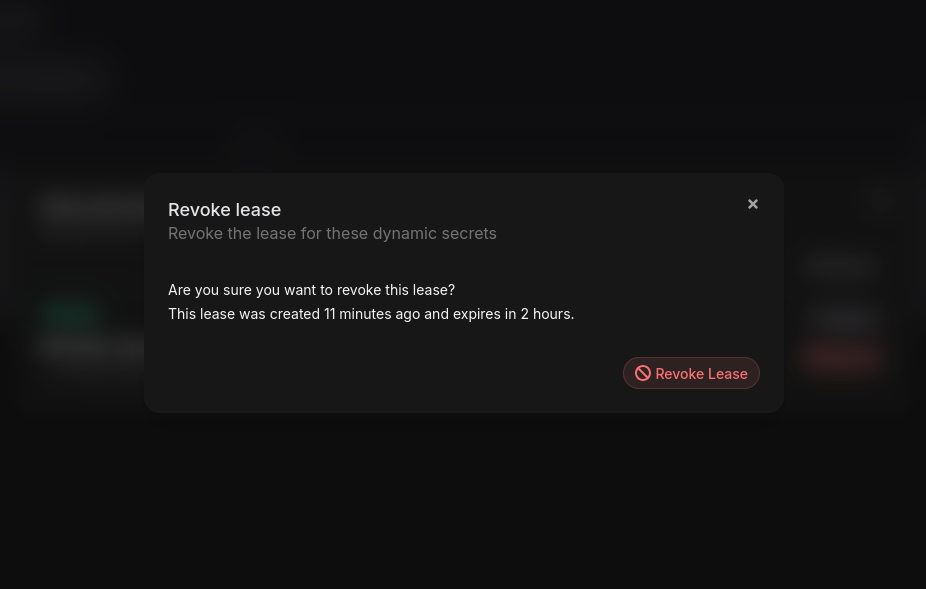
Revoke a Leases
To revoke a lease, click on the Revoke button next to the lease in the list. Confirm the revocation in the dialog that appears. This will immediately delete the credentials associated with the lease and mark the lease as revoked.